


Lectures move quickly. While you write one point down, the professor may already be explaining the next idea or adding an example that never appeared on the slides. A lecture recording app gives you a reliable copy of the class so you can listen first and revisit difficult sections later.
The right app depends on how you attend class. Otter suits live transcription, Notta handles multilingual lectures, Genio Notes supports structured study, and Plaud offers dedicated hardware. If you already have an audio or video file, Audio Converter AI can turn it into a searchable transcript and summary.
Before recording, ask the instructor and check school policy. Consent, privacy, and copyright rules vary, and permission to record for personal study does not automatically allow sharing or publication.
Quick answer: For most students, the best lecture recording setup is the one that reliably captures a full class, produces a searchable transcript, and fits the way they study afterward. Choose a live transcription app for in-person classes, a screen recorder for online lessons, or a file-based transcription tool when the lecture has already been recorded.
Best Lecture Recording Apps at a Glance
| App | Best for | Capture method | Transcription | Study features | Free option | Main limitation |
| Audio Converter AI | Turning lecture files into searchable text | Browser recording, file upload, or link | Post-recording with timestamps and speaker separation | Editable transcript and AI summary | Free plan available | Less focused on handwritten notes or slide annotation |
| Otter.ai | Live lecture transcription | Mobile, desktop, Zoom, Meet, Teams | Live, with speaker identification | Summaries, highlights, AI chat | 300 minutes per month | Free conversations are capped; language support is narrower than some rivals |
| Notta | Multilingual lectures | Live recording, meetings, uploads, browser extension | Live and post-recording | AI notes, translation, multiple exports | 120 minutes per month | Free recordings are limited to 3 minutes each |
| Genio Notes | Accessibility and structured study | Laptop, mobile, online or offline | Post-class transcription; some plans offer live captions | Linked notes, slides, labels, quizzes | 30-day trial; some institutions provide access | Individual plans do not include live captions |
| Plaud | Dedicated recording hardware | Portable AI recorder or wearable | Post-recording | Summaries, templates, mind maps, searchable notes | Starter transcription allowance | Requires separate hardware and may involve a subscription |
| Rev | AI or human-verified transcripts | Mobile recording and file upload | AI or human transcription | Editor, timestamps, captions | 45 AI minutes per month | Human transcription can be expensive for long courses |
| Zoom | Recording online classes | Computer or cloud recording | Cloud transcript and meeting transcript features | Searchable recordings, summaries on eligible plans | Computer recording on all accounts | Cloud transcription requires an eligible paid account |
| Loom | Screen-based lessons and presentations | Screen, camera, microphone, system audio | Automatic transcription | Captions, comments, sharing, basic recaps | 25 videos, up to 5 minutes per video | The free recording limit is too short for most lectures |
Pricing and plan limits were checked on November 4, 2026. Vendors can change features or limits, so confirm the current plan before recording an important class.
What Is Lecture Recording?
Lecture recording is the process of capturing a class, seminar, or presentation as audio or video so it can be reviewed later. A modern lecture recording workflow may also create a transcript, timestamps, speaker labels, summaries, captions, and study notes from the original recording.
Recording is most useful when it supports active review rather than replacing attention in class. A study published in BMC Medical Education found that students commonly used lecture recordings to catch up on missed classes, clarify material, improve notes, and prepare for assessments. In that study, 55.9% used recordings to review or clarify material, 44.1% used them to enhance notes, and 43.8% used them for quiz or exam preparation. The researchers also observed that active behaviors, such as pausing to take notes or consult other materials, were more common than simply replaying a lecture passively. See the full research article.
That distinction matters. Saving an audio file is only the capture stage. The learning value usually comes later, when you search the transcript, revisit a difficult explanation, check your notes, or turn the lecture into questions for revision.
How We Evaluated These Lecture Recording Apps
This is a researched comparison based on current product documentation, published plan information, lecture-focused workflows, and the practical requirements of a typical 45- to 90-minute class. It is not a controlled accuracy test, and we have not assigned unsupported accuracy scores.
We evaluated each option using seven questions:
- Can it capture a complete in-person or online lecture?
- Does it provide live transcription, post-recording transcription, or both?
- Can students find specific moments using timestamps or search?
- Does it help turn raw content into summaries or structured notes?
- Does it work across the devices students already use?
- Are the free limits realistic for a full class?
- Are its privacy, consent, and plan limitations clearly disclosed?
Disclosure: Audio Converter AI is our product. We include it because it directly supports lecture recording transcription, but we do not rank it as the best choice for every student. It is strongest after—or during browser-based—capture, while tools such as Genio Notes and Plaud offer different hardware or study-note experiences.
1. Audio Converter AI: Best for Turning Lecture Recordings Into Text
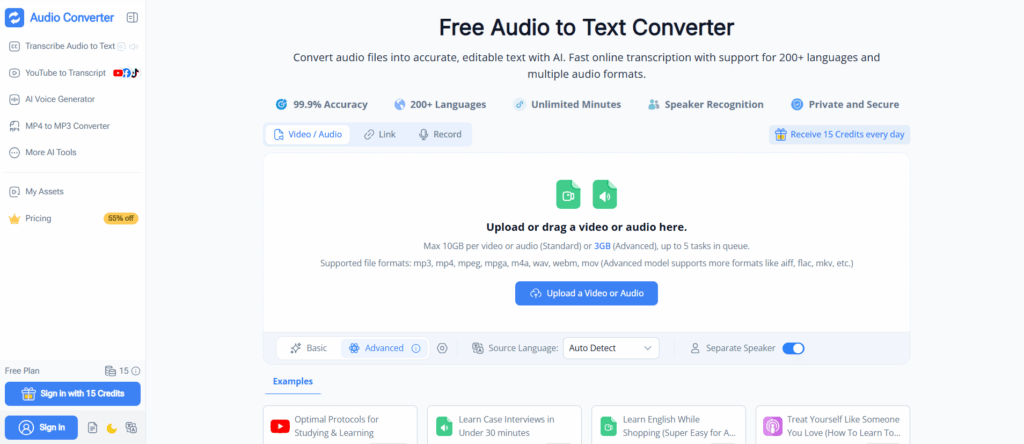
Audio Converter AI works when a lecture has already been recorded or when you want to record in a browser. Its audio-to-text converter and video-to-text converter create editable text with timestamps, speaker separation, and an AI summary.
Record or upload the class, select the language, generate the transcript, review uncertain passages, and use the summary as a starting point. Large-file and queue limits depend on the current interface, model, and plan.
If you want to transcribe audio to text, this is where the recording becomes searchable. Check names, formulas, specialist terms, and passages affected by noise.
Pros
- Browser recording, file upload, and link-based input
- Supports audio, video, and common lecture file formats
- Timestamps, speaker separation, editable text, and AI summaries
Cons
- Not a dedicated lecture-note canvas for handwriting or slide annotation
- Post-recording results still need human review
2. Notta: Best for Multilingual Lectures
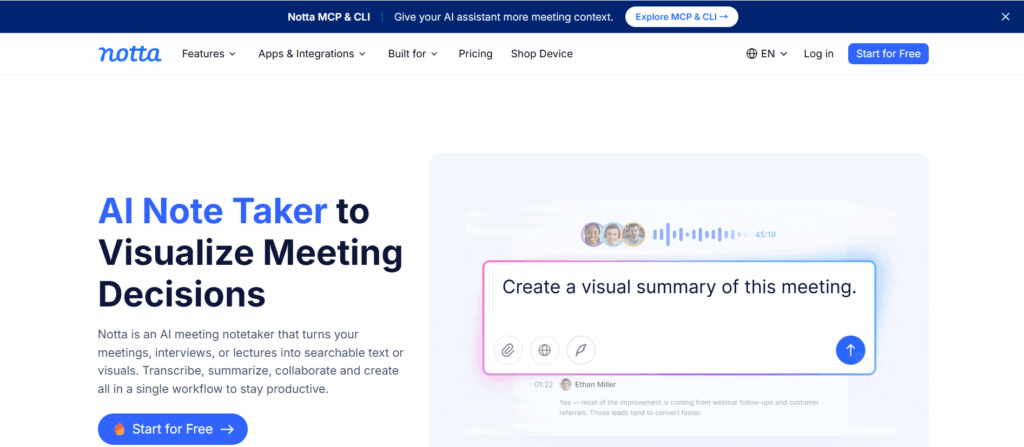
Notta combines instant recording, file imports, meeting transcription, a Chrome extension, and screen recording. Its advantage is a multilingual workflow that covers transcription, translation, AI notes, and exports.
The free plan provides 120 minutes per month but limits each transcription to three minutes, making it unsuitable for a full lecture. Pro raises the allowance to 1,800 minutes and supports recordings up to five hours. Check the current Notta limits.
Pros
- Multiple capture methods for in-person and online learning
- Strong multilingual and translation workflow
- AI notes and several export formats
Cons
- Three-minute recording limit makes the free plan impractical for lectures
- Many of the most useful limits depend on the paid plan
3. Genio Notes: Best for Accessibility and Structured Study
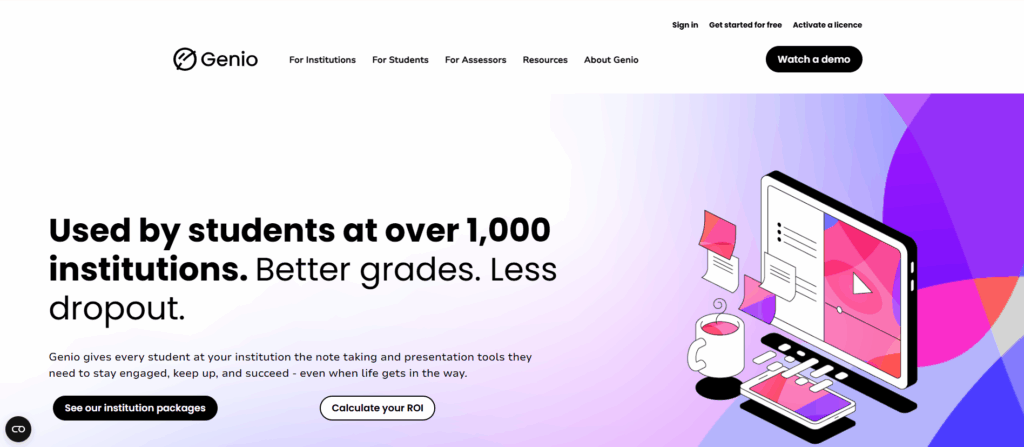
Genio Notes is built around studying rather than transcription alone. Students can record class audio, add slides, images, labels, headings, and handwritten notes, then return to specific moments during playback. Transcripts stay synchronized with the recording.
Genio works online or offline across computers and mobile devices. Individual plans start from £12 per month with a 30-day trial, but the pricing page says live captions are not included for individual users. Some institutions provide access to eligible students.
Pros
- Combines recordings with slides, text, labels, images, and handwritten notes
- Strong accessibility and accommodation focus
- Works online and offline
Cons
- Individual users do not receive live captions
- Full access may depend on an institution or paid subscription
4. Plaud: Best Dedicated AI Lecture Recorder
Plaud offers dedicated AI recording hardware. A card-sized recorder or wearable can capture class without keeping a laptop open, then organize the transcript into summaries, templates, mind maps, and searchable notes.
This approach helps when phone storage, notifications, or laptop microphones are unreliable. Current product material advertises 300 Starter transcription minutes per month and a student discount, but offers vary. Confirm them on Plaud’s official site.
Pros
- Purpose-built portable recording hardware
- No need to keep a laptop screen open during class
- Summaries, templates, mind maps, and searchable notes
Cons
- Requires buying and carrying another device
- Transcription allowances and advanced AI features may require a plan
5. Otter.ai: Best for Live Lecture Transcription
Otter is practical for students who want text to appear while the professor speaks. It records through mobile apps and works with Zoom, Google Meet, and Microsoft Teams. Speaker identification, playback, summaries, highlights, and AI Chat help students search across a lecture library.
The free Basic plan currently includes 300 monthly minutes and three lifetime file imports. Otter also notes a 30-minute free conversation cap, so a full class may require a paid plan. Check the official Otter pricing page.
Pros
- Real-time transcription for in-person and online classes
- Speaker identification and synchronized playback
- Search, summaries, highlights, and AI chat
Cons
- Free limits are restrictive for full-length lectures
- Supported transcription languages are fewer than multilingual-first tools
6. Rev: Best When Transcript Verification Matters
Rev offers automated and human transcription. AI is faster and cheaper for everyday study; human transcription is useful when quotations, accessibility documents, or technical terminology need additional verification.
Current documentation lists AI transcription at $0.25 per minute, human transcription at $1.99 per minute, and 45 free AI minutes monthly. See Rev’s pricing documentation.
Pros
- Choice between AI and human transcription
- Interactive transcript editor and timestamps
- Mobile recording and file uploads
Cons
- Pay-per-minute human transcription becomes expensive for a semester of lectures
- Free AI allowance may not cover a full class
7. Zoom: Best for Recording Online Lectures
Zoom is the natural choice when the class already takes place there. Computer recording is available across account types and saves MP4 video, M4A audio, and chat text. Paid cloud recording can produce an editable VTT transcript.
Zoom’s documentation says cloud audio transcription requires a Pro, Business, Education, or Enterprise account. The university or host must enable recording and transcript permissions.
Pros
- Captures the lecturer, slides, screen sharing, and class discussion
- Computer recordings are available on all account types
- Paid cloud recordings can include searchable transcripts
Cons
- Recording is controlled by the host or account administrator
- Cloud transcription requires an eligible paid account
8. Loom: Best for Screen-Based Lessons and Presentations
Loom records the screen, camera, microphone, and system audio. It suits short explanations, presentations, demonstrations, and slide-based lessons, with transcripts and captions in more than 50 languages.
Loom’s pricing page limits Starter accounts to 25 videos and five minutes per video. That works for a recap, not a typical 60-minute lecture.
Pros
- Records screen, camera, microphone, and system audio together
- Automatic transcripts and captions
- Easy link sharing and comments
Cons
- Five-minute free recording limit is too short for most lectures
- Built more for video communication than academic note organization
Which Lecture Recording App Should You Choose?
There is no universal winner. Use the class format and your study goal to narrow the choice.
| Your situation | Best starting point | Why |
| You want live text during an in-person class | Otter | Mobile recording and live transcription |
| The lecture is in another language | Notta | Multilingual capture, transcription, and translation |
| You receive note-taking accommodations | Genio Notes | Recording is integrated with accessible, structured study tools |
| You do not want to record on a phone or laptop | Plaud | Dedicated portable hardware |
| You already have an MP3, M4A, MP4, or lecture video | Audio Converter AI | Turns existing files into searchable text and summaries |
| You need a transcript checked by a person | Rev | Offers both AI and human transcription |
| The class takes place in Zoom | Zoom | Native meeting recording and eligible cloud transcripts |
| You need to record slides or a short software lesson | Loom | Screen, camera, and system-audio capture |
Also consider the hidden constraint: class length. A free plan that offers 120 or 300 monthly minutes may still be unusable if each individual recording is capped at three, five, or 30 minutes. Check both the monthly allowance and the per-recording limit.
Is It Legal to Record a College Lecture?
There is no single yes-or-no answer that applies to every school and jurisdiction. The safest rule is to obtain the instructor’s permission, follow the institution’s recording policy, and keep the file for the approved purpose.
Educational use does not automatically make every recording or distribution lawful. The U.S. Copyright Office explains that fair use depends on several factors, including purpose, the nature of the work, the amount used, and the effect on the market. Classroom materials may also include copyrighted slides, student discussions, unpublished research, or personal information.
Use this checklist before pressing Record:
- Ask the instructor directly, even if other students are recording.
- Check the syllabus and university recording policy.
- If recording is an approved disability accommodation, follow the process provided by the accessibility office.
- Tell participants when class discussion may be captured.
- Keep the file private unless sharing is explicitly allowed.
- Do not upload a lecture publicly or sell it without permission.
- Review the privacy and retention settings of the recording service.
This section provides general information, not legal advice. Laws about consent and recording vary by location.
How to Record a Lecture Clearly
Good transcription starts with good audio. AI cannot reliably recover words that were never captured clearly.
- Get permission before class. Do not wait until the lecturer has started speaking.
- Choose the right capture method. Use a mobile or hardware recorder for in-person lectures and a screen or meeting recorder for online classes.
- Sit near the speaker. Distance and room echo often matter more than the price of the microphone.
- Run a short test. Record 20–30 seconds, play it back through headphones, and check the volume.
- Prepare the device. Charge the battery, free storage space, disable notifications, and prevent sleep mode from interrupting the recording.
- Reduce avoidable noise. Keep the device away from typing, paper movement, bags, and ventilation outlets.
- Save a backup. If the class is important, confirm that the file uploaded or copied successfully before deleting the original.
- Name the file clearly. Include the course, topic, and date, such as
BIO201-cell-signaling-2026-11-04.m4a.
For online lectures, capture system audio when the platform and instructor permit it. Recording only the laptop microphone can create echo or reduce the lecturer’s voice quality.
How to Turn a Lecture Recording Into Study Notes
A transcript is a reference, not a finished study guide. Use it to locate and process information rather than trying to memorize every sentence.
1. Create the transcript
Upload the recording or use a browser-based recorder. Select the correct language instead of relying on automatic detection when the lecture uses a specialized accent or alternates between languages.
2. Review uncertain sections
Check names, equations, dates, technical terminology, and places where several people speak at once. Use timestamps to replay only the relevant section.
3. Extract the structure
Identify the lecture’s main question, core concepts, examples, definitions, and conclusions. Divide a long transcript into sections that match the lecturer’s topic changes.
4. Build active notes
Rewrite the main ideas in your own words. Convert headings into questions, add cues beside important concepts, and separate facts you understand from points you still need to clarify.
5. Connect the recording to other materials
Add slide numbers, textbook chapters, assignment requirements, and links to further reading. A transcript becomes more useful when it connects back to the rest of the course.
6. Review soon after class
Imperial College London advises students to revisit lecture recordings within two or three days, annotate or paraphrase instead of copying word for word, and pause to consult other resources. See its guidance on using lecture recordings effectively.
Frequently Asked Questions
What is the best app for lecture recording?
Otter is a strong starting point for live transcription, while Genio Notes is better for structured study and accessibility. Plaud suits students who want dedicated hardware, and Audio Converter AI works well for turning existing lecture files into transcripts and summaries. The best choice depends on class format, language, duration, and how you study afterward.
Where can I record a lecture for free?
Many phones include a free voice recorder, and Zoom provides computer recording across account types when the host permits it. Otter, Notta, Rev, Loom, and Audio Converter AI also offer free options, but their per-recording or monthly limits differ. Check whether the free plan can capture an entire 45- to 90-minute class.
Can ChatGPT record lectures?
ChatGPT Record can transcribe and summarize audio on supported ChatGPT plans, but availability depends on the current desktop app and workspace. OpenAI currently documents it for the macOS desktop app, with a four-hour session limit, and advises users to obtain the required consent. Always confirm current availability in the official ChatGPT Record documentation.
Is it legal to record a professor’s lecture?
It depends on local law, university rules, the instructor’s policy, and whether other students are being recorded. Ask for permission before recording and keep the file within the approved use. An accessibility accommodation may provide a formal recording right, but it may still restrict sharing or distribution.
How do I turn a lecture recording into notes?
Transcribe the audio, correct names and specialist terms, divide the transcript by topic, and rewrite the main points in your own words. Add timestamps, slide references, questions, and links to course materials. Finish by creating retrieval questions or a short quiz instead of keeping only a passive summary.
What audio format is best for lecture recording?
M4A is practical because it offers good speech quality at a smaller file size than uncompressed WAV. MP3 is widely compatible and easy to upload or process with an MP3-to-text converter. WAV preserves more data but creates much larger files. Clear microphone placement usually matters more than choosing between M4A and MP3.
Final Recommendation
Choose a lecture recording app based on what happens before and after you press Record. Reliable capture matters, but the file becomes valuable only when you can find the important explanation, check your understanding, and convert the material into active study notes.
For live transcription, start with Otter. For multilingual classes, consider Notta. For an accessibility-centered study system, look at Genio Notes. For dedicated hardware, compare Plaud devices. If you already have a lecture recording and need searchable text, timestamps, speaker labels, and a summary, use Audio Converter AI to transcribe audio to text.
Whichever tool you choose, get permission, test the audio, protect the recording, and review it while the class is still fresh.