


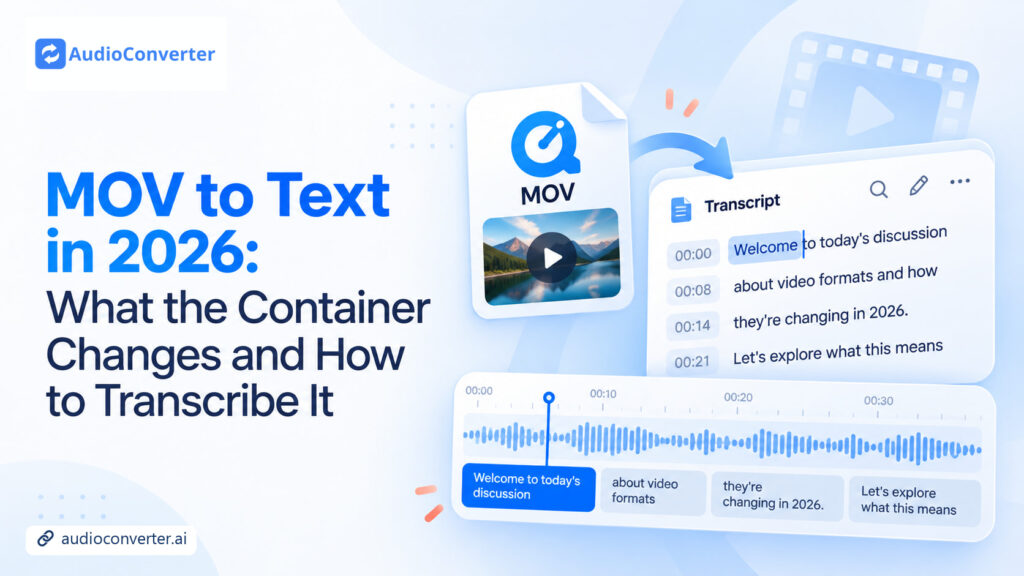
A .mov file can look deceptively simple. You double-click it, the video plays, and the audio sounds fine. Yet a MOV to text upload may return a clean transcript, an empty result, or an unsupported-file warning. MOV describes the container, not everything packed inside it.
This guide explains what matters when converting MOV to text, how to choose between direct upload and audio extraction, and what we learned from testing Audio Converter AI with a real MOV file. The goal is not to promise that every video will behave the same way. It is to help you reach a usable transcript with fewer guesses.
Why MOV files need a little more attention
MOV is Apple's QuickTime container format. Think of it as a box that can hold several synchronized tracks: video, one or more audio streams, timing data, and other media information. A MOV to text service must decode the particular audio stream in that box, which may differ from one file to the next.

That distinction matters because MOV to text software listens to the audio track; it does not transcribe the visual frames. A video can play normally because your local player supports its codecs, while an online service may not decode the same stream. A screen recording may contain microphone audio, system sound, both tracks, or no useful speech at all.
The file extension cannot tell you which of those situations you have. Two videos can share the .mov suffix while using different audio codecs, channel layouts, or numbers of tracks. One may contain a clean mono voice; another may mix a quiet microphone with louder system sound. That is why a successful upload proves compatibility for the tested file, not for every QuickTime video. When a service returns silence, inspect the source before blaming speech recognition. The decoder may never have received the voice you could hear in your desktop player.
Before you upload anything, answer three questions:
- Can you hear the speech clearly when you play the original file?
- Is the voice on the track you actually want to transcribe?
- Do you need plain text for editing, or timed subtitles for the video?
Those checks take less than a minute and prevent many apparent MOV to text failures that are really source-file problems.
Three practical MOV to text routes
There is no single best MOV to text route for every file. The right choice depends on whether your source opens cleanly, what you plan to do with the text, and whether timing must remain connected to a video-editing timeline.
| Route | Use it when | What you gain | What to watch |
|---|---|---|---|
| Upload the MOV directly | The file contains clear speech and the MOV to text service accepts it | The shortest path, with no extra conversion | A particular codec or track layout may still fail |
| Extract the audio first | Direct upload fails or the file contains the wrong audio track | A smaller, easier-to-inspect source file | One extra preparation step and another file to manage |
| Transcribe inside a video editor | You need text while cutting video or building captions | Text and timing stay close to the edit | More tools than a simple transcript requires |
Direct MOV to text upload is the natural first attempt. It preserves the original timing and avoids creating an intermediate file. If it works, you can move straight to review and export.
Audio extraction is the useful MOV to text fallback, not a mandatory ritual. On a Mac, QuickTime Player can export an audio-only copy; editors can do the same elsewhere. This lets you isolate the correct track, check volume, or remove material that does not belong in the transcript. Extraction only prepares a cleaner source for Audio to Text.
An editor-based MOV to text workflow makes sense when captions are part of the final video. If you only need interview notes, a searchable record, or a document you can quote, a dedicated transcription page is usually quicker.
What Audio Converter AI offers for MOV to text
Audio Converter AI lists MOV among its accepted file types, so a MOV to text job can begin with the original video. Every extra conversion adds time, creates another copy to track, and can introduce a settings mistake.
The product's stronger benefit is its MOV to text workflow, not a sweeping accuracy claim. In one place, you can upload, choose or detect the language, request speaker separation, review with timestamps, and select a text or subtitle format. That keeps the task focused when you need spoken content rather than a full editing suite.
The MOV to text interface makes review practical. Timestamps lead back to uncertain moments, while speaker labels help organize interviews and conversations. Labels still need checking when voices overlap. The visible export menu in our test included TXT, DOCX, SRT, VTT, CSV, and audio options, with timestamp and speaker-name controls.
Those formats solve different problems. TXT is the cleanest choice when you want copy that can move into notes or a writing draft. DOCX is convenient when reviewers work in a document editor. SRT and VTT retain timed cues, which matters for captions and video publishing. CSV is better suited to structured handoff or row-by-row review. Choosing the output before you start can save a second export later. It also tells you what to inspect: prose needs accurate wording, while subtitles need accurate wording and timing.
One successful MOV to text test does not prove universal support. We saw the export choices in the interface, but the internal browser did not save a downloaded TXT file locally, so download remains unverified. Other codecs, damaged streams, or unusual track layouts can behave differently.
If you already have an audio-only copy, skip the MOV to text upload and use Audio to Text with that simpler input.
Our MOV to text hands-on test
We made an original 38-second sample for this test. It used H.264 video, mono AAC audio at 44.1 kHz, and a short English upload-review-export narration. We knew exactly what the file contained and avoided exposing private material.
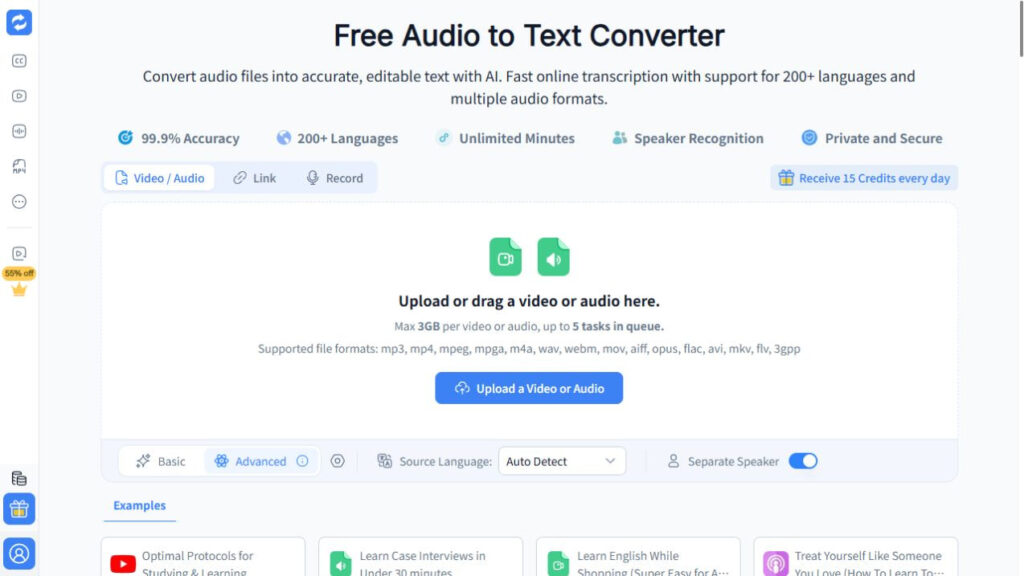
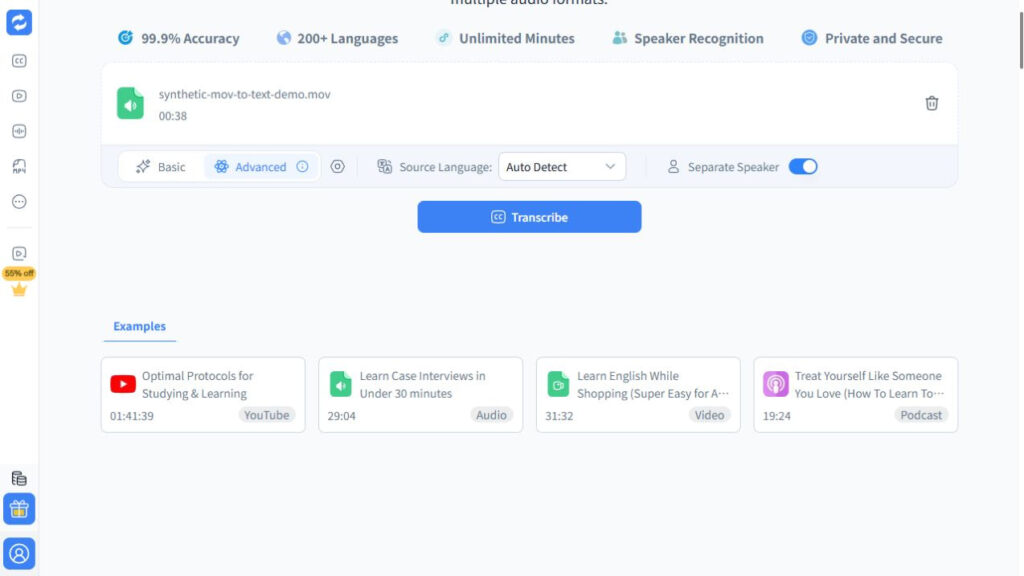
In Advanced mode, the MOV to text screen showed Auto Detect and Separate Speaker. After selection, the page displayed synthetic-mov-to-text-demo.mov, a duration of 00:38, and an active Transcribe control.
Once authenticated, the MOV to text result contained the expected narration. The view included a 00:00 timestamp, Speaker 01, and Transcript, Subtitles, and Chapter tabs. We compared the displayed copy with the known script for this clean sample.
That MOV to text result proves a working path for this file, not an accuracy benchmark. It does not establish a percentage score, a processing-time guarantee, multi-speaker performance, or support for every codec a MOV container can hold.
How to convert MOV to text step by step

1. Prepare your MOV to text source
Before a MOV to text upload, listen on headphones if the recording matters. Check the opening and closing seconds, quiet speakers, music, and overlapping voices. No transcription service can reconstruct a missing microphone track.
For confidential MOV to text work, confirm that the service and account fit your organization's handling rules. Test an unfamiliar workflow with a short synthetic sample before uploading sensitive material.
2. Start the MOV to text upload
Open the audio transcription tool, choose your local file, and wait for the filename and duration. A MOV to text job benefits from a known spoken language when you can select one. Automatic detection helps when you are unsure, but review is still necessary.
For a multi-person MOV to text job, turn on speaker separation. Treat the labels as an editing aid rather than verified identities; software may distinguish voices without knowing who the people are.
3. Review the MOV to text transcript
Review the first few MOV to text sentences before polishing the rest. Early errors often reveal the wrong language, track, low volume, or masking music. Then check names, product terms, numbers, dates, and quotations against the recording.
Use timestamps to replay uncertain passages. If several people speak at once, correct both wording and attribution. A polished paragraph attached to the wrong speaker is still inaccurate.
4. Export for the job you are doing
Export MOV to text results as TXT or DOCX for notes and editing. Choose SRT or VTT when words must stay synchronized with video. CSV can help when another system needs structured rows.
Do not delete the original when a MOV to text result appears on screen. Open the export, check its beginning and end, and inspect subtitle timing. The job is finished only when the saved deliverable is usable.
When direct upload fails
A failed MOV to text upload does not mean the video is broken or that the service never supports MOV. The container can hide several different causes.
| What you see | What may be happening | What to try next |
|---|---|---|
| The MOV to text service rejects the file | It cannot decode one stream, or the file is damaged | Open it locally, then export a fresh MOV or audio-only copy |
| The result is empty | There is no usable speech track, or the wrong track was included | Inspect the source and isolate the speech track |
| Words collapse around music | Background sound masks the voice | Reduce the music or export a cleaner voice track |
| Speaker labels drift | Voices overlap or sound similar | Use timestamps to correct labels manually |
| Subtitle cues feel late | Pauses, cuts, or segmentation affected timing | Adjust cues against the final video timeline |
If you hear the right voice locally but MOV to text upload fails, extract the audio and turn audio into text. Removing video simplifies the source. Keep the original nearby to verify wording and timing.
Re-encoding is a MOV to text troubleshooting step, not a default. It can solve compatibility problems, but poor settings may change quality. Start with direct upload and prepare a new file only when needed.
That restraint also preserves the original recording and makes comparison easier if you test another service.
A five-minute transcript quality check
Don't proofread MOV to text output like an ordinary document. Keep the recording open and sample the first minute, every speaker change, names, figures, and planned quotations. If the opening is badly wrong, check the language and audio track before line editing.
Then inspect the MOV to text deliverable itself. A text file should contain the expected beginning and ending. Subtitle cues should move forward and stay close to the spoken words. That is the difference between a transcript that exists and one you can use.
FAQ
Does converting MOV to text read words shown inside the video?
Normally, no. MOV to text conversion works from the speech-bearing audio stream. Reading titles, slides, signs, or captions inside frames is an optical character recognition task. Run both processes if you need spoken dialogue and on-screen words.
Should I convert the MOV to MP3 before transcription?
Not unless you need to. Direct MOV to text upload is simpler when the service can read the audio track. Extract audio after a failed upload, to reduce file size, or to isolate one track. Avoid needless compression when speech is already difficult to hear.
Which output should I choose?
Choose the MOV to text output for the next task. TXT and DOCX suit editing and searchable archives; SRT and VTT preserve caption timing. CSV helps with structured review when available. Open the saved file before discarding the source.
Can the tool identify every speaker automatically?
Speaker separation can organize a conversation, but labels still need review. Overlapping voices, similar vocal characteristics, and short interjections can confuse diarization. Confirm the wording and the attribution against the recording, especially for interviews, research, or published quotations.
What is the fastest fallback after an upload error?
First make sure the MOV plays locally and contains the intended voice. Then create an audio-only copy and try Audio to Text. If that also fails, inspect the codec, track selection, and source quality before repeatedly re-uploading the same file.
The practical recommendation
Begin with the original MOV. It is the shortest route, preserves the source timing, and may work without any preparation. If the service cannot read it, treat MOV as a container rather than a promise: identify the correct audio track, export a simpler copy, and try again.
Whichever route succeeds, keep the source beside you during review. Check the parts that carry consequences: names, figures, quotations, and speaker changes. Open the final export before calling the job complete. Good transcription is more than text appearing on a page. You should be able to trace it back to the recording and trust it for the work that follows.