


Need to turn audio into text but dreading the hours of replay-and-type work ahead of you? This guide shows you the fastest way to do it with Audio Converter AI, from uploading your first file to exporting a clean, polished transcript in minutes.
Introduction
Every day, millions of people record interviews, meetings, lectures, podcasts, and voice memos, then hit the same wall: the audio exists, but the words trapped inside it are nearly impossible to search, quote, or edit. When you turn audio into text, you unlock all of that content in a format you can actually use.
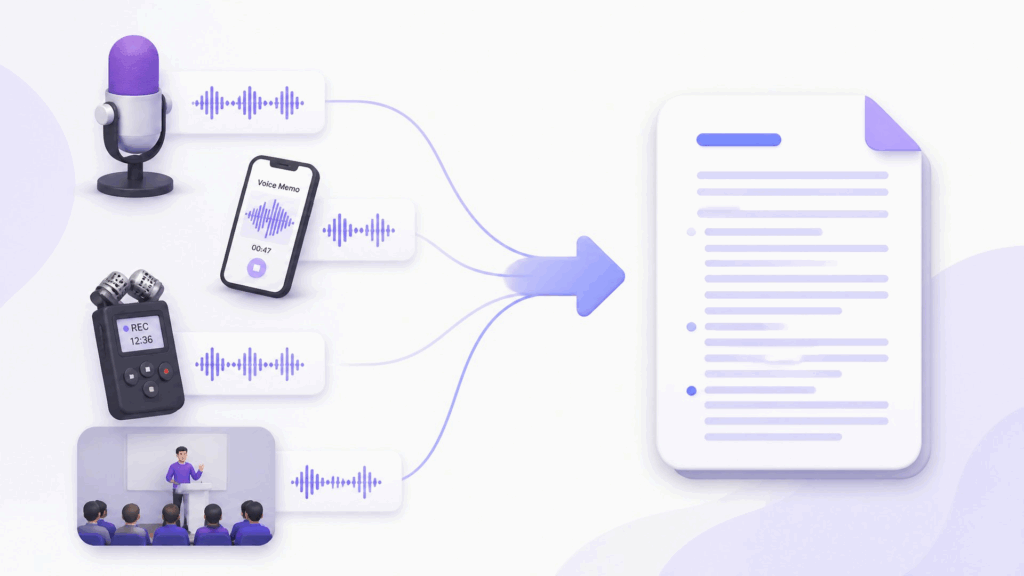
The catch is that manual transcription is brutally slow. Typing out a single one-hour recording by hand can take four to six hours, and your wrists will want a formal apology. That is exactly why tools that turn audio into text automatically have taken off, and why Audio Converter AI has become a favorite. It is a browser-based tool that uses AI speech recognition to convert audio to text in minutes, with no software to install and no steep learning curve.
In this guide, you will learn what audio to text transcription involves, why it matters, and how to turn audio into text step by step with Audio Converter AI, plus pro tips and real-world examples along the way. Whether you are a journalist, a student, a podcaster, or a busy professional, the same five-step workflow applies every time you need to turn audio into text.
What Does It Mean to Turn Audio into Text?
To turn audio into text means converting the spoken words in a recording into written words on a page. Behind the scenes, an AI speech recognition model listens to your audio, breaks it into tiny slices of sound, predicts which words match those sounds, and stitches everything into a readable transcript. What used to require a trained human ear now happens automatically, and the accuracy keeps improving every year.
Key Components of Audio to Text Transcription
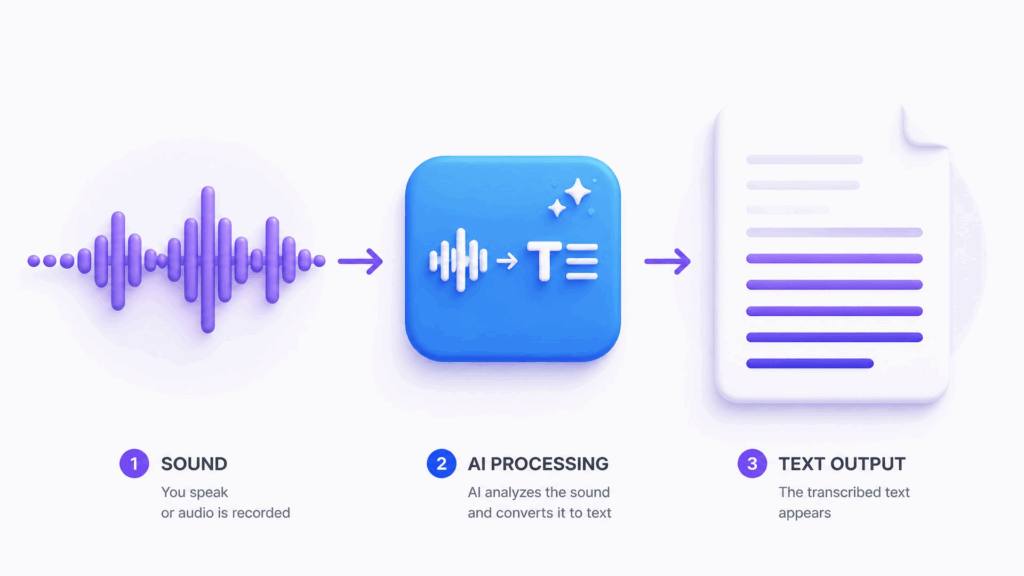
Every time you turn audio into text with a modern tool, three parts work together:
- Audio input: your recording, whether it is an MP3, WAV, M4A, or another common format, or a link to an online video or audio file.
- Speech recognition engine: the AI model that converts speech to text, handling different languages, accents, and background conditions.
- Transcript editor: the workspace where you review, correct, and format the text before exporting it.
Get all three right and the entire process to turn audio into text feels almost effortless. Audio Converter AI bundles all three into one clean interface, so you never have to juggle separate tools.
Audio to Text vs. Manual Transcription
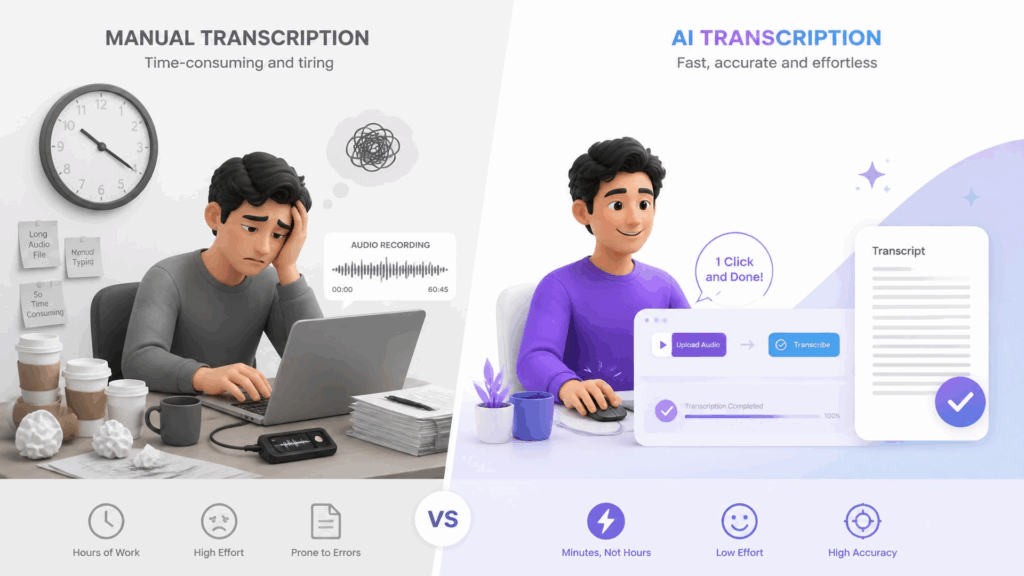
Here is the honest comparison. When you turn audio into text manually, you control every word, but you pay with your time: a one-hour file often eats four to six hours of typing, not to mention the mental fatigue of constant replaying.
When you turn audio into text with AI, that same file is done in minutes. Modern speech recognition is highly accurate on clear recordings, and a quick review pass catches the occasional slip. For speed, cost, and sanity, AI transcription wins for almost everyone, and the results only get better as the models improve. Curious? You can turn audio into text with a test file in about two minutes.
Why Turning Audio into Text Matters
Saving time is the obvious benefit, but it is only the beginning. Here is what you really gain when you turn audio into text.
Save Hours of Manual Typing
The math is hard to argue with. If you record ten hours of interviews a week and transcribe them by hand, that can mean up to sixty hours of typing. When you turn audio into text with AI instead, the same workload shrinks to a few minutes of processing plus a short review. People who turn audio into text regularly often reclaim entire workdays, time they can spend on the parts of their job that actually need a human.
Make Content Searchable and Accessible
Audio is a black box for search engines and a struggle for anyone who is deaf or hard of hearing. Text is the opposite: searchable, quotable, translatable, and accessible. When you turn audio into text, a podcast episode becomes a blog post, a meeting becomes skimmable notes, and a lecture becomes a study guide you can search with a keyword instead of scrubbing through an hour of playback. Anyone who has hunted for one quote in a 90-minute recording knows the ability to turn audio into text is quietly life-changing.
Repurpose Audio for Blogs, Notes, and Subtitles
Content creators, this one is for you. One transcript can become an article, social posts, video subtitles, and newsletter material. Instead of staring at a blank page, you start from thousands of words that already exist. If you need to turn audio into text for repurposing, the transcript is where all the leverage lives, and it costs you minutes to produce.
How to Turn Audio into Text: Step-by-Step Guide with Audio Converter AI
Ready to get practical? Here is the complete workflow to turn audio into text with Audio Converter AI, from raw recording to finished document. If you want to follow along, you can turn audio into text right now with a free account.
Step 1: Upload Your Audio File or Paste a Link
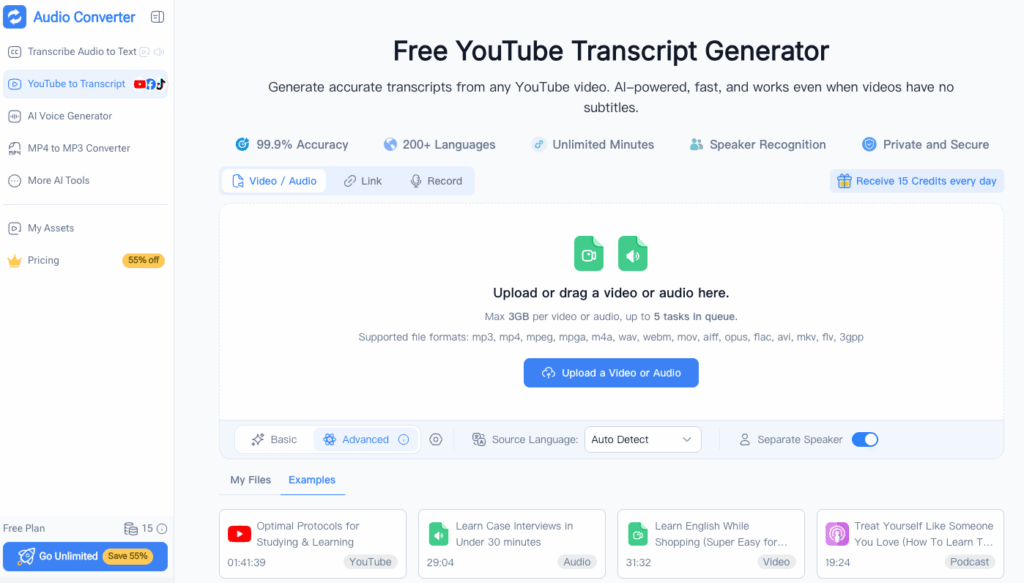
Log in to Audio Converter AI and click the upload button. Drag and drop your audio file, or paste a link if your audio lives on an online platform. There is no need to chop a two-hour meeting into pieces; long files upload just fine.
The supported formats cover the usual suspects: MP3, WAV, M4A, AAC, FLAC, OGG, and more. This flexibility is a big part of why it is so easy to turn audio into text no matter what device recorded it, from a phone voice memo to a studio-grade recorder.
Step 2: Choose Your Language and Transcription Settings
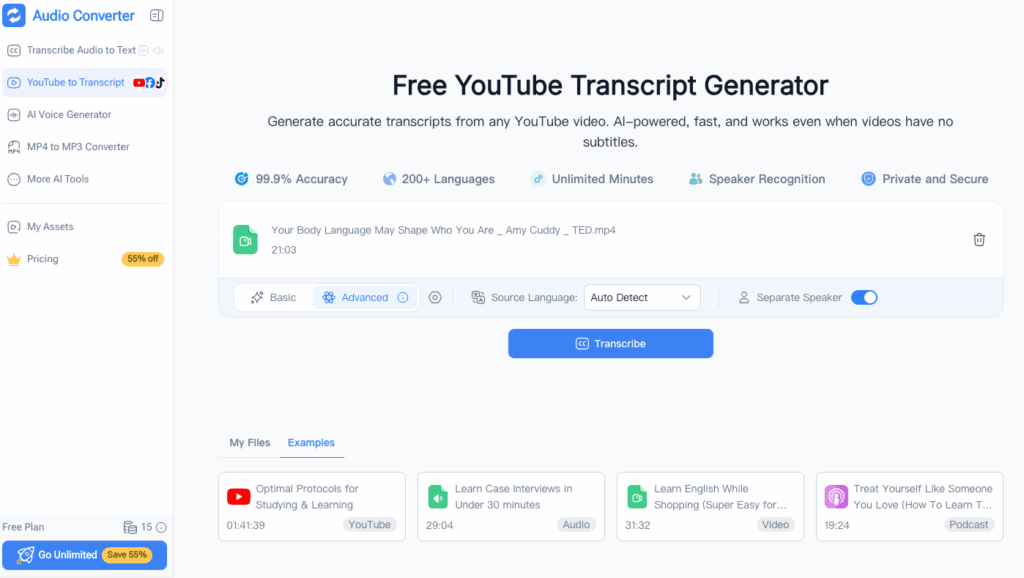
Before the AI starts, tell it what it is listening to. Pick the language of your recording from the supported list, and enable speaker identification if your audio has multiple voices, such as an interview or a panel discussion. Choosing the correct language is one of the biggest accuracy levers when you turn audio into text, so it is worth a second look before you hit the button.
Step 3: Let AI Turn Audio into Text Automatically
Now for the satisfying part. Hit the transcribe button and Audio Converter AI processes your file, generating the transcript automatically, usually within minutes even for long recordings. You can grab a coffee, answer emails, or simply watch the text appear.
This hands-off processing is the core reason people turn audio into text with AI rather than typing it out themselves: the machine does the boring part so you can do the thinking part. No rewinding fifty times, no guessing at mumbled words, no marathon typing sessions.
Step 4: Review and Edit Your Transcript
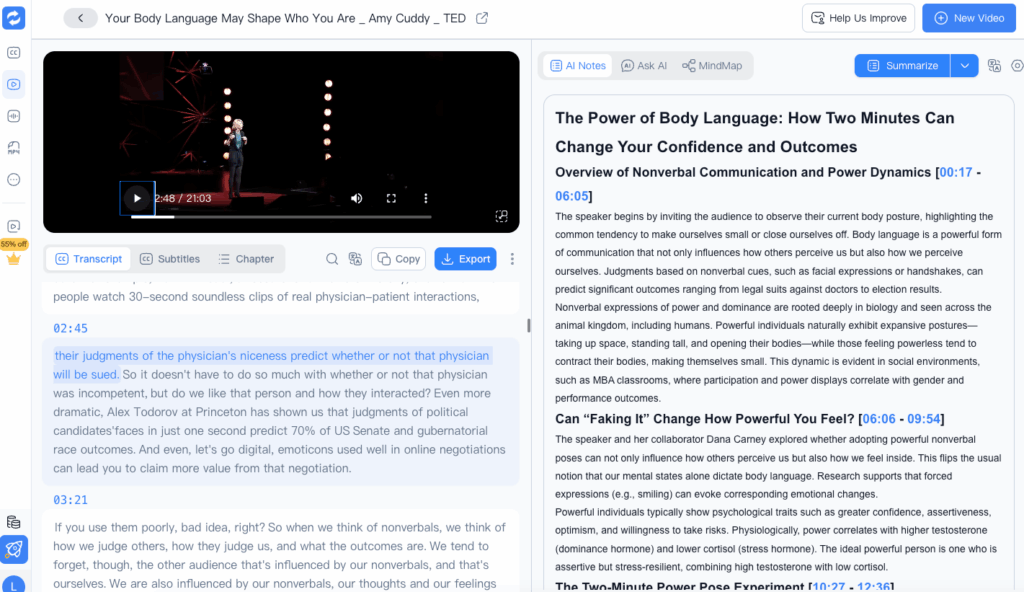
AI is impressively accurate, but heavy accents, crosstalk, and muffled audio can still trip it up. That is why this step exists. Read through the transcript in the built-in editor, fix any slips, and use the synced audio playback to double-check names, numbers, and quotes.
Most people find they only need a light pass, which still beats typing everything by hand. A quick review is all it takes to turn audio into text you would proudly put your name on, so give it the two minutes it deserves.
Step 5: Export and Share Your Text
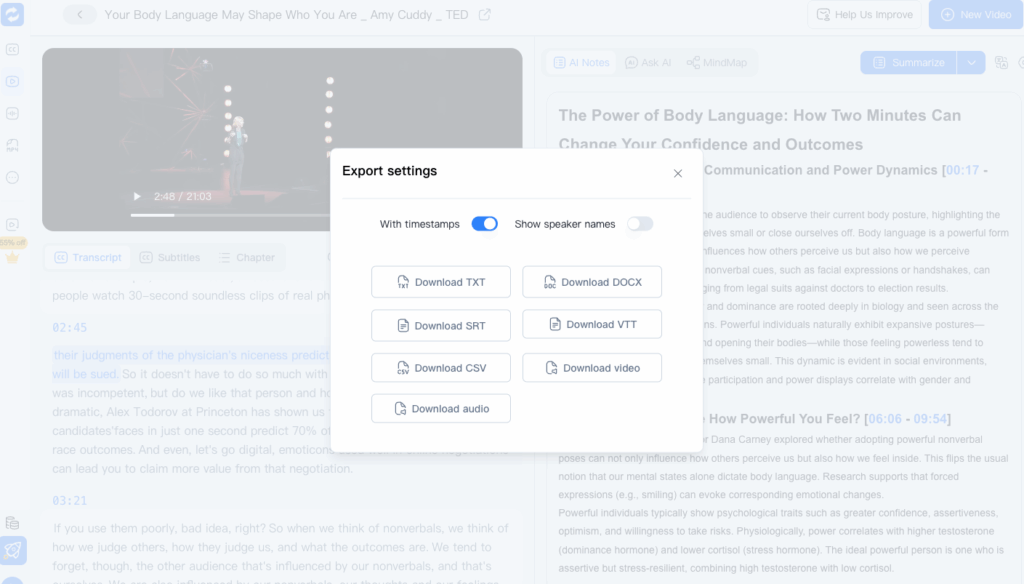
Happy with the result? Export your transcript in the format you need, from plain text for quick notes to formatted documents for reports. Share it with your team, archive it for records, or drop it straight into your next article.
That is the entire journey. You managed to turn audio into text without typing any of it yourself, and the whole thing likely took less time than reading this guide.
Pro Tips for Better Audio to Text Results with Audio Converter AI
Anyone can turn audio into text in a few clicks. These tips help you get the cleanest transcripts possible, straight from people who run this workflow every week.
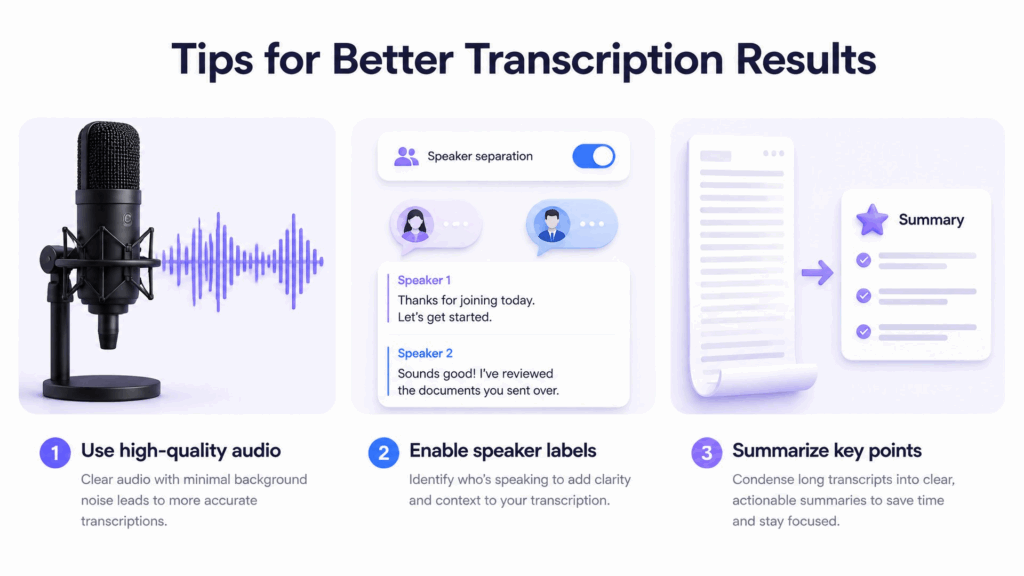
Use Clean, High-Quality Audio Sources
Garbage in, garbage out applies to transcription too. Before you turn audio into text, listen to your recording once. If it sounds muffled or noisy, upload the highest-quality version you have, because lossless formats like WAV give the AI more to work with than heavily compressed audio.
Whenever you control the recording, capture in a quiet room with the mic close to each speaker. Clean input is the single biggest accuracy booster you can get for free, and it applies every single time you turn audio into text.
Leverage Speaker Identification for Interviews and Meetings
If your recording has more than one voice, switch on speaker identification before transcribing. You get a labeled transcript, with Speaker 1, Speaker 2, and so on, which saves you from guessing who said what during review.
For anyone who needs to turn audio into text from interviews, panels, or team meetings, this one toggle saves hours of cleanup and makes the final transcript far easier to read.
Use AI Summaries to Compress Long Transcripts
A two-hour transcript is a lot to read. Use the AI summary feature to pull out the key points, decisions, and action items, then jump to the relevant part of the full transcript when you need the exact wording.
It is the fastest way to turn audio into text you will actually read, not just file away. Summaries are also perfect for sharing meeting outcomes with people who missed the call.
Real-World Examples: How People Turn Audio into Text with Audio Converter AI
Two quick stories that show what actually changes when you turn audio into text instead of typing it out yourself.
Example 1: A Journalist Transcribing Interview Recordings
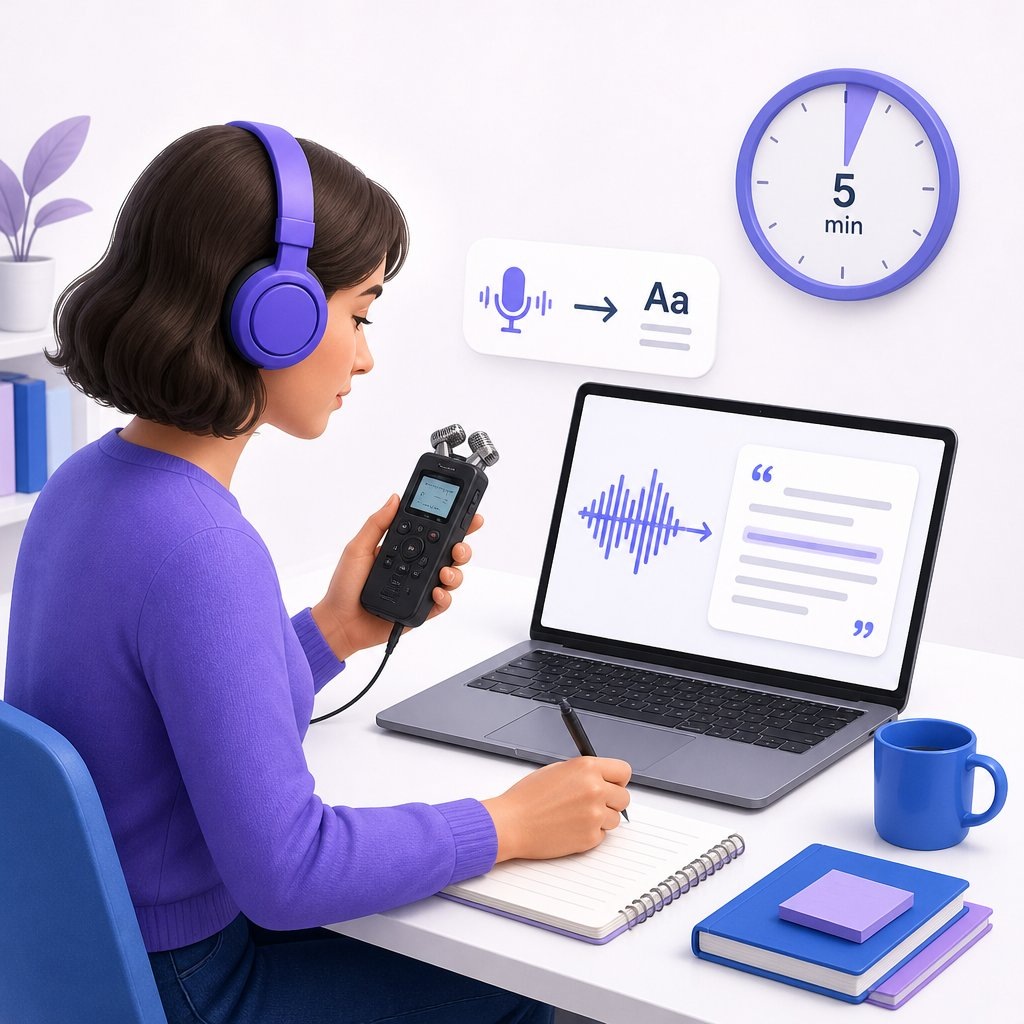
Maya, a freelance journalist, records two or three 45-minute interviews a week. Transcribing them by hand used to eat her evenings. Now she uploads each recording to Audio Converter AI as soon as an interview ends, and the transcript is ready before she sits down at her desk.
She reviews quotes against the synced audio, fixes a name here and there, and exports the text straight into her draft. For reporters who turn audio into text daily, this workflow is career-changing, because the quoting and fact-checking, the actual journalism, gets her full attention.
Example 2: A Student Converting Lecture Audio into Study Notes
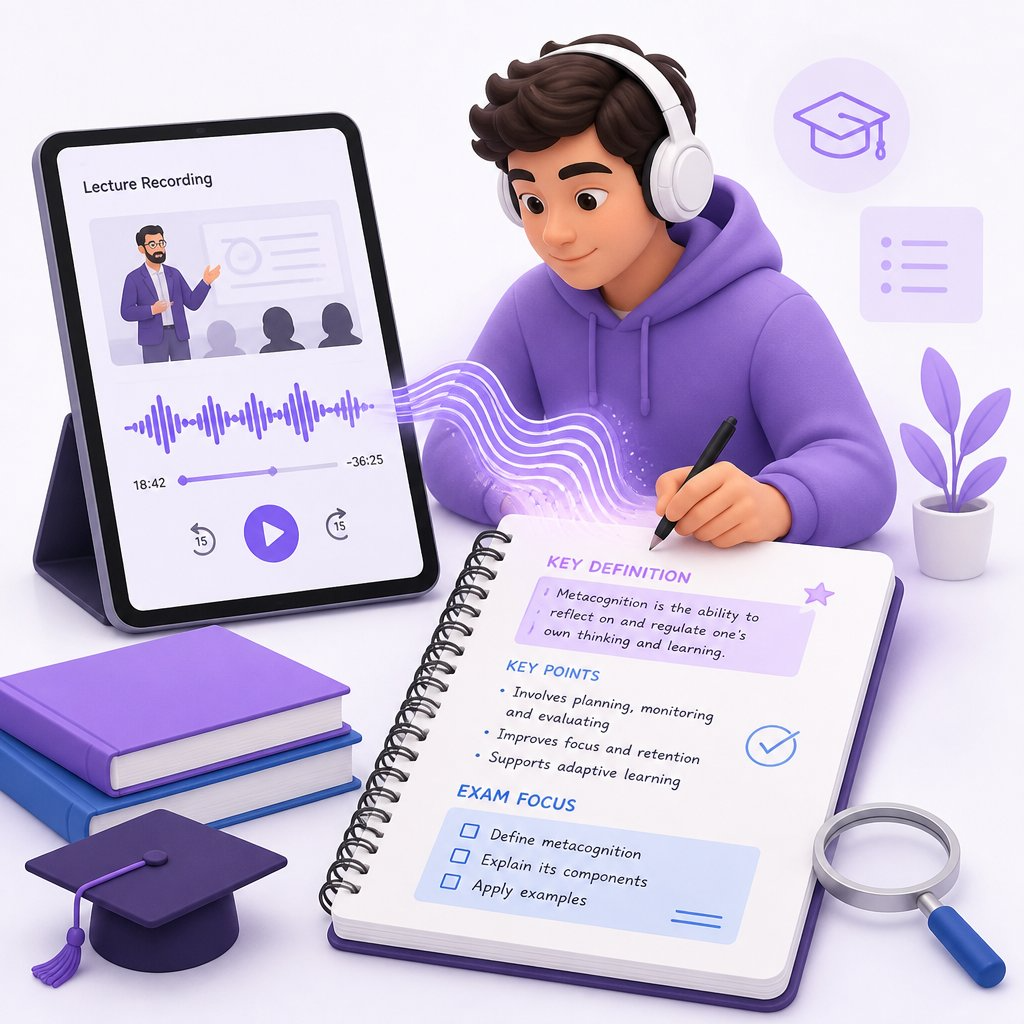
Daniel records his university lectures because handwritten notes never capture everything. Each week he uploads the recordings and lets the AI turn audio into text, then highlights definitions and exam-relevant sections in the transcript.
When finals arrive, he searches his transcripts by keyword instead of scrubbing through hours of audio. Students who turn audio into text consistently study faster, miss less, and stress a lot less too.
Frequently Asked Questions
How accurate is Audio Converter AI at turning audio into text?
On clear recordings with one or two speakers, modern AI speech recognition is highly accurate, typically above 95 percent. Accuracy dips with heavy background noise, strong crosstalk, or very niche vocabulary, which is exactly why the review step in this workflow exists. If you need to turn audio into text with high precision, clean audio plus a quick review is the winning formula.
What audio formats can I upload to Audio Converter AI?
All the common ones: MP3, WAV, M4A, AAC, FLAC, and OGG, plus links to online audio and video files. You rarely need to convert a file before uploading, which keeps the path from recording to transcript short. In practice, you can turn audio into text from almost any source you throw at it.
How long does it take to convert audio to text?
Minutes, not hours. When you turn audio into text with AI, most files finish processing in a small fraction of their actual length, so even a one-hour recording is typically done before your coffee gets cold. Long files are not a problem either.
Is my audio secure when I use Audio Converter AI?
Yes. Your files are processed securely and kept private to your account. They are not shared with other users, and you can delete them whenever you like. You can turn audio into text without ever wondering where your recordings end up.
Conclusion
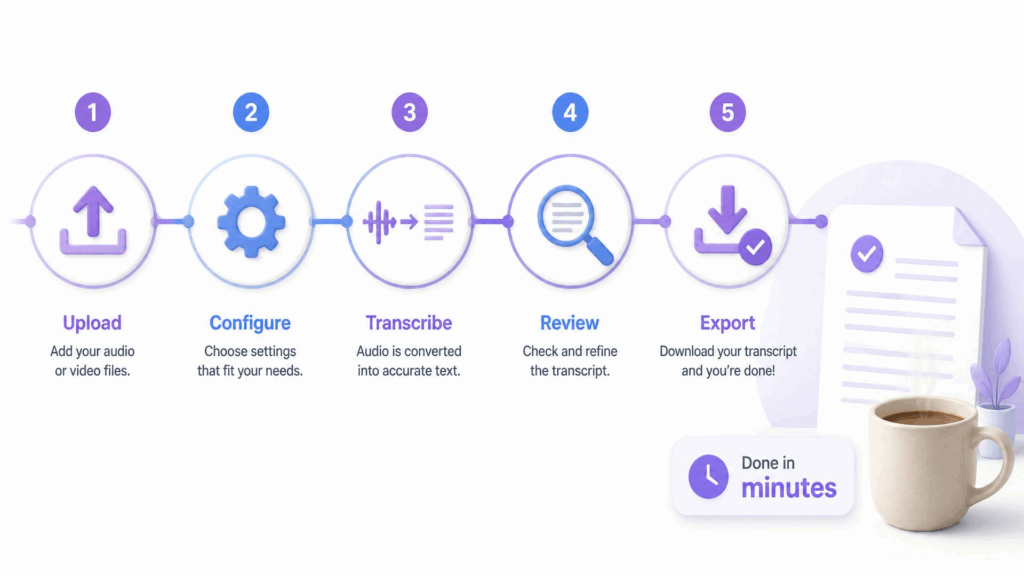
You no longer need to sacrifice an entire afternoon to turn audio into text. With Audio Converter AI, it is a five-step job that takes minutes: upload, configure, transcribe, review, export. Journalists quote faster, students study smarter, and creators publish more, all because the words trapped in recordings finally land on the page where they belong.
The best part is that it takes no special skills to turn audio into text this way. If you can upload a file, you can turn audio into text. If you can click a button, you can turn audio into text. Students turn audio into text for notes, reporters turn audio into text for quotes, and teams turn audio into text for records, all with the same five steps.
If this guide convinced you, do not let the next recording pile up. Head over and turn audio into text with Audio Converter AI today, and feel what it is like when a one-hour interview becomes a finished transcript while your coffee is still warm. The easiest way to turn audio into text is the one you start now, and your future self, the one not typing at midnight, will thank you.
Whenever you need to turn audio into text again, the same five steps will be waiting, and they will keep getting faster.