


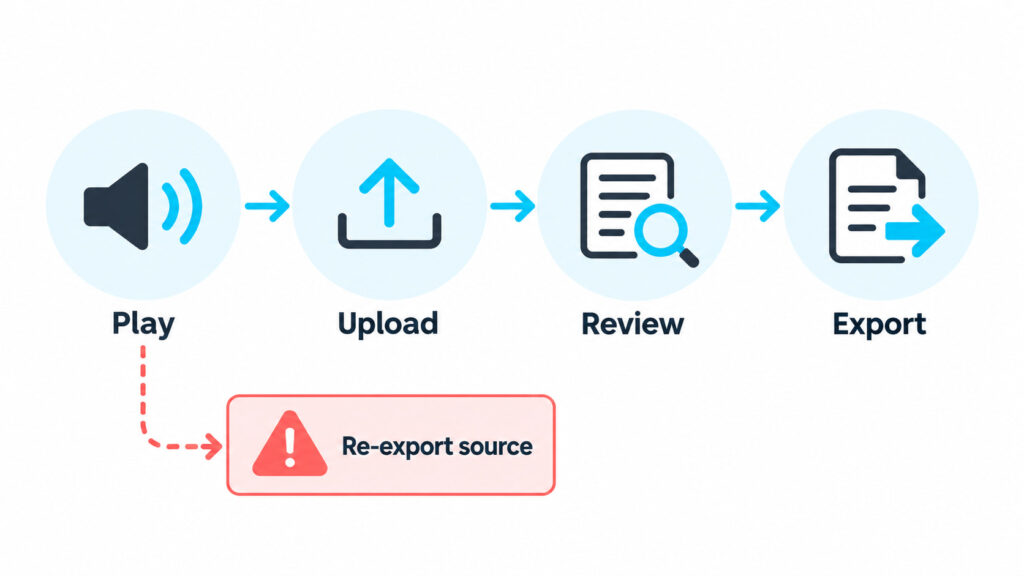
Most M4A recordings do not need a detour through MP3. A cleaner M4A to text workflow starts with the original recording: make sure it plays, upload it to a transcription service that accepts M4A, and check the transcript against the audio before exporting anything.
The awkward part of M4A to text often happens before transcription. An iPhone Voice Memo may still be tucked inside the recorder app. A file with an .m4a extension may contain audio that a particular service cannot decode. Even a clean interview can turn names, dates, and figures into an editing job. This guide deals with those problems in the order you are likely to meet them.
What is inside an M4A file?
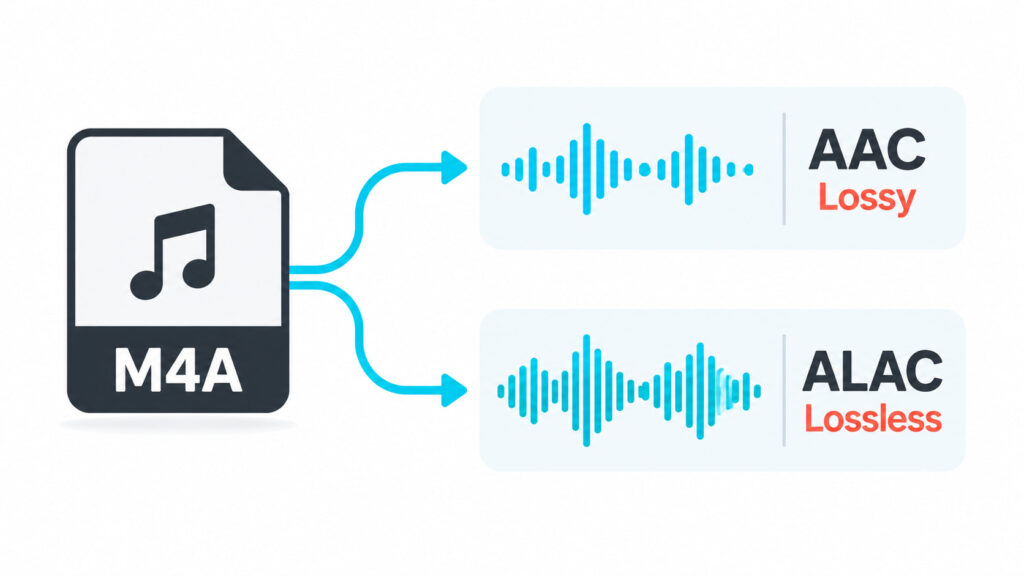
M4A is an audio container in the MPEG-4 family. The extension describes the wrapper, not every technical detail inside it. Many recordings use AAC audio, while others use ALAC. That distinction matters because M4A to text compatibility depends on the audio stream as well as the filename.
Apple's Core Audio documentation associates both AAC and ALAC with MPEG-4 Audio (.m4a). AAC is lossy; ALAC is lossless. During M4A to text troubleshooting, you cannot tell which one a recording uses just by looking at its name, and renaming recording.aac or recording.mp3 to recording.m4a does not change the underlying codec.
Our synthetic validation file offers a concrete example. It contained one mono AAC-LC stream at 22.05 kHz inside an M4A container, and FFmpeg decoded the full 37.94 seconds. That proves this specific file was healthy enough for an M4A to text test. It does not prove that every codec, protected file, or damaged recording will work.
The container cannot rescue poor sound. A distant microphone, overlapping speakers, clipping, and heavy background noise can all weaken an M4A to text result even when the file itself is valid.
Where M4A to text jobs usually go wrong
The recording is not a local file yet
A memo can play perfectly in a phone app and still be missing from the browser's file picker when you begin M4A to text transcription. Use the recorder's share or export action to create a local copy, wait for any cloud download to finish, and play the exported file from beginning to end. On a computer, move a copy into a folder you can find easily.
Before an M4A to text upload, check that the local file has a nonzero size. A cloud-only stub may have the right name without containing the complete recording.
The upload is rejected
The filename or extension is only one input an M4A to text service checks. Try the original exported recording rather than a renamed copy. If the site still rejects it, inspect the file with a media-information tool and look for an MPEG-4/M4A container plus a decodable audio stream such as AAC.
If local playback also fails, recover or re-export the source before restarting the M4A to text job. If the recording plays but the service rejects its codec, make a separate compatibility copy in a supported audio format. Keep the original untouched. Format conversion may solve a compatibility problem, but it will not clean up noisy or clipped speech.
Names, numbers, and speakers are wrong
Transcription software does not know which surname, product code, or price matters to you. When reviewing an M4A to text result, search for proper names, acronyms, dates, amounts, and URLs. For an interview or meeting, listen at every speaker change instead of trusting labels automatically.
A long transcript becomes an editing trap
Fast processing does not guarantee a fast edit. Break the transcript into sections, mark uncertain passages, and verify quotations or decisions against the recording. For a long M4A to text project, a plain-text export is convenient for editing, while a timestamped version makes it easier to return to the audio.
The file works, but the transcript still needs a plan
Before uploading a long recording, decide what a useful result looks like. A meeting transcript may need speaker changes and action items. A voice memo may only need a searchable record. An interview intended for publication needs closer checks around quotations, names, and numbers. That decision shapes the M4A to text review and prevents a polished transcript from becoming another file nobody uses.
Start with a short section of the recording when the stakes are high. Check whether the selected language fits the speech, whether speaker separation helps, and whether the timestamps make it easy to return to a questionable line. A short M4A to text sample cannot predict every issue later in the file, but it can expose a wrong global setting before you spend time editing the whole transcript.
Keep two copies once editing begins: the untouched export and a working copy. The untouched version preserves what the M4A to text service returned, while the working copy can hold corrections, headings, and notes. This is especially useful when two editors disagree about a name or quotation because both can return to the same audio and the same initial text.
Convert M4A to text with Audio Converter AI
Audio Converter AI lists M4A as a direct upload format. The interface currently shows Basic and Advanced modes, automatic source-language detection, and a Separate Speaker control. Those options cover the common decisions in an M4A to text workflow without requiring a preliminary MP3 conversion.
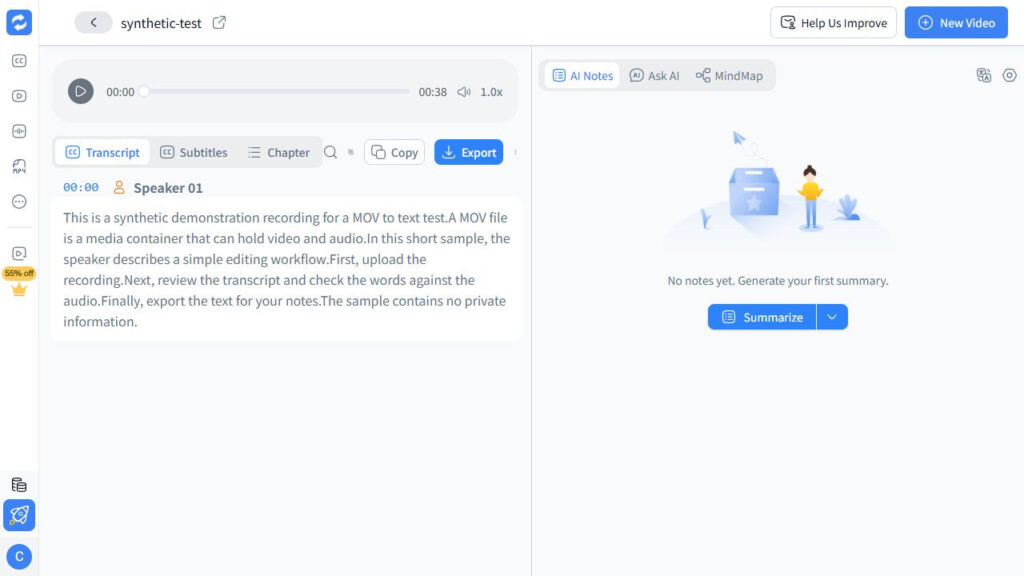
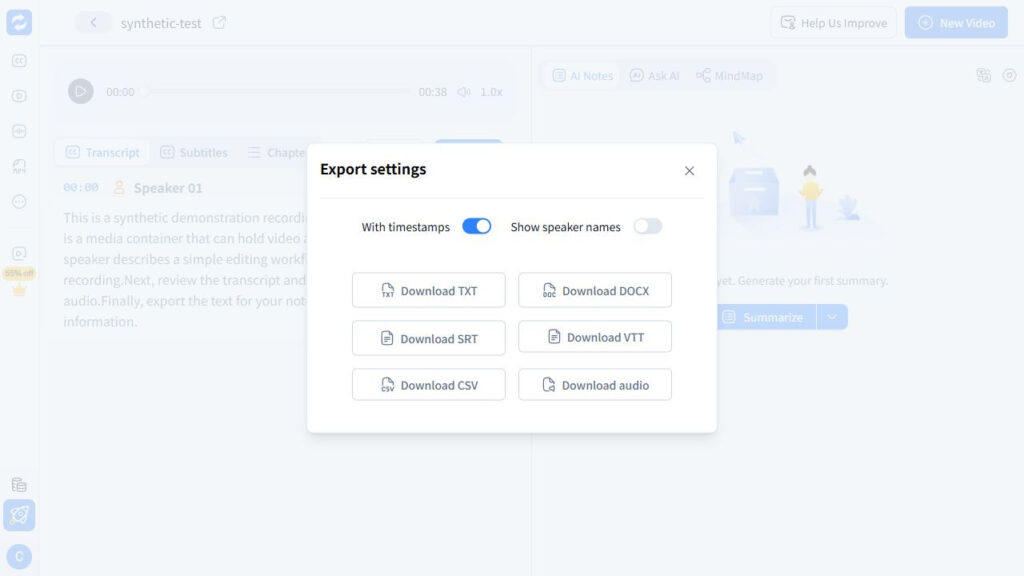
We also ran a controlled M4A to text check. A 37.94-second mono AAC-LC M4A uploaded successfully, produced a timestamped transcript, and downloaded as TXT. The narration came from an earlier MOV test, so the check validates the M4A upload-to-export path only. It is not a broad accuracy test across voices, languages, codecs, or recording conditions.
1. Check the recording before uploading
Play the beginning, middle, and end. Confirm that the download has finished, the file size is greater than zero, and the extension has not been changed by hand. Keep the original recording in a safe place throughout the M4A to text process. If it contains private material, read the service's current privacy terms before you upload it.
Once the file plays all the way through, the M4A to text process has a sound starting point. When it does not play, return to the source app and export it again. A new filename will not repair broken audio.
2. Choose settings that fit the recording
Open the verified Audio to Text converter and select the original M4A. The M4A to text page accepts the source directly. Choose Basic or Advanced according to the options available in your account. Auto Detect is reasonable for one clear language; manual selection is better when the language could be ambiguous.
Separate Speaker can help with interviews and meetings, but it may make a short single-speaker memo harder to read. The best M4A to text settings are the ones that match the recording, not the ones with the most controls switched on.
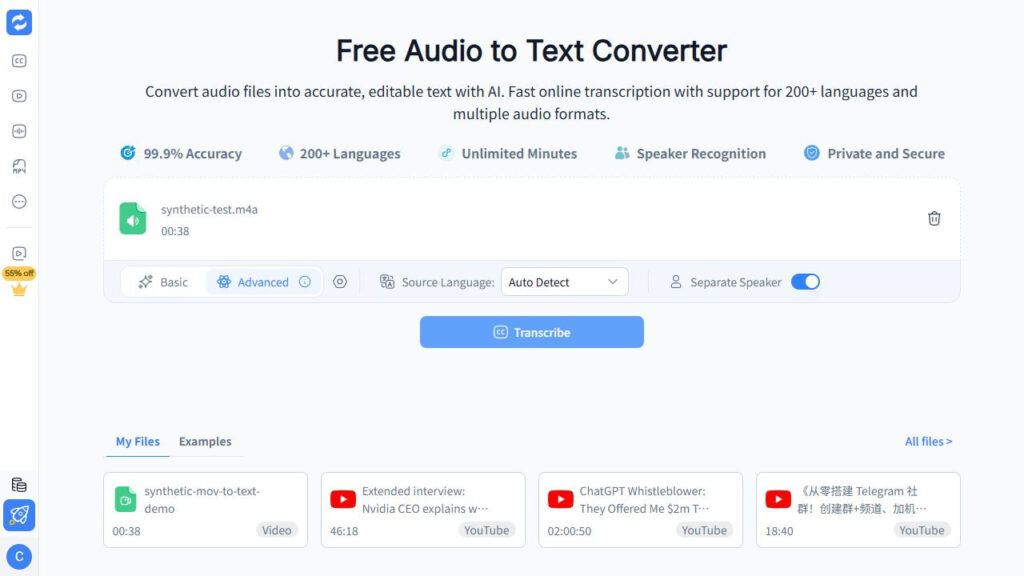
If the first transcript uses the wrong language throughout, select the source language and try again. On an M4A to text retry, turn speaker separation off when its labels add clutter.
3. Confirm the file before transcription starts
Select the file or drag it into the upload area. The page currently includes M4A in its supported-format notice. Before starting the M4A to text job, compare the displayed filename and duration with your source recording.
A healthy M4A to text upload should appear in the queue without a format error. If it is rejected, go back to local playback and stream inspection. Re-export the source or create a separate compatibility copy rather than overwriting the only recording.
4. Edit with the audio beside you
Listen to the first minute while reading the same section of text. For M4A to text review, search the transcript for names, numbers, dates, URLs, technical terms, and repeated filler words. Replay every quotation you plan to publish. For meetings, check speaker changes and action items.
This is where an M4A to text result becomes usable rather than merely complete. If only a few terms are wrong, edit them by hand. Rerun the file only when the language or another global setting is wrong.
Review in passes instead of trying to fix everything at once. First, confirm that no section of speech is missing. Next, check details that carry consequences: people, dates, amounts, URLs, product names, and quoted statements. A final M4A to text pass can focus on punctuation and paragraph breaks. Separating those jobs makes it less likely that a tidy sentence distracts you from a wrong figure.
Use the timestamps as an audit trail. When a phrase is uncertain, mark the time, listen again, and leave a note if the audio does not support a confident correction. M4A to text output should not turn an unclear recording into a confident claim. If the audio itself is ambiguous, the transcript should preserve that uncertainty rather than guess.
5. Export for the next task
TXT is usually the simplest M4A to text export for notes, analysis, or a document editor. Choose SRT when you need timed subtitle cues. Keep the corrected transcript with the original audio so that later changes can be checked.
The final M4A to text export should fit what you plan to do next, not sit inside a browser tab. If an exported file shows broken characters or line breaks, try another supported format and open it in an editor that handles UTF-8 text.
Why direct M4A input helps
The clearest advantage is one less conversion step. Audio Converter AI's checked page lists M4A alongside MP3, WAV, AAC, and FLAC, so a normal recording can enter the M4A to text workflow directly. That leaves the original file intact and avoids confusing audio conversion with speech transcription.
The visible settings are practical rather than mysterious. Auto Detect handles an unknown source language, manual selection provides a recovery path, and Separate Speaker addresses multi-person recordings. Basic and Advanced modes make the processing choice explicit. These are observed interface options, not a promise that every M4A codec or every recording will produce the same M4A to text result.
When more than one copy exists, leave a simple trail from source to transcript. Record the original filename, the filename selected for the M4A to text upload, and whether a compatibility conversion happened between them. If an editor later finds a missing sentence, that trail shows which audio file to open instead of forcing everyone to compare several nearly identical downloads.
Filename and duration are useful handoff checks. Before transcription, note both as they appear in the upload queue. After export, keep that note with the transcript and identify the original recording separately. This small M4A to text record matters when a converted copy has been shortened, renamed, or moved to another folder: the next person can reproduce the handoff without guessing which file produced the text.
A transcript discrepancy should send you back through that trail in a fixed order. First, compare the disputed passage with the uploaded copy. If the speech is missing there, return to the original audio and check whether the copy was incomplete. If both recordings contain the passage, review the transcript and its settings instead. This M4A to text decision point separates a source-file problem from an editing problem without claiming that a second conversion will repair either one.
A compact M4A to text troubleshooting table
| What you see | What to check | What to do |
| The file picker cannot find the recording | The audio is still inside the source app or cloud storage | Share or export a local copy, wait for it to download, then select that copy |
| The M4A to text upload says the format is unsupported | The extension and actual container or codec may not match, or the file may be damaged | Test local playback, inspect the stream, and re-export the source |
| The M4A to text transcript uses the wrong language | Automatic detection chose incorrectly | Select the source language manually and retry the job |
| Names and numbers are wrong | The M4A to text result lacks the context you have | Replay those passages and correct them manually |
| Speaker labels are confusing | Turns overlap, speakers change quickly, or there is only one speaker | Compare the M4A to text output with the audio and disable separation when it adds no value |
| The M4A to text output is awkward to reuse | The export format does not fit the next task | Use TXT for editing or SRT for timed subtitles |
FAQ
Can I use a free M4A to text converter?
Yes, but check the current on-page limits before uploading a long recording because allowances can change. Start with a short, non-sensitive file, inspect the M4A to text result, and read the current pricing page before committing a large batch.
How do I transcribe an M4A file to text for free?
Save the recording as a local file and make sure it plays. Then use a service that explicitly accepts M4A, select the appropriate language and speaker settings, review the transcript, and export it. Audio Converter AI lists direct M4A input, so a healthy file does not need to become an MP3 before the M4A to text conversion begins.
How do I convert M4A to text online for free?
Use an online transcription tool rather than an audio-format converter. An M4A-to-MP3 utility changes the container or codec; it does not turn speech into words. On Audio Converter AI, the M4A to text path is upload, transcribe, review, and export as TXT or SRT according to the current interface.
Keep the original recording
The transcript is easier to search and edit, but the audio remains the source of truth for names, dates, quotations, and decisions. Store the original M4A beside the corrected text, and note any passages that required a judgment call. That way, an M4A to text draft stays traceable to the recording it came from.