


Searching for a safe YouTube to MP4 converter sounds straightforward. You paste a link, choose MP4, and expect a video file. The difficult part is that “safe” can mean four different things at once: safe for your device, safe for your privacy, permitted by the platform, and appropriate under copyright rules.
No logo, padlock icon, or marketing promise can answer all four questions. A better approach is to check what you are allowed to use, how the website behaves, what information it requests, and what kind of file it produces.
This guide explains those checks without treating any online service as a zero-risk option.
A YouTube-to-MP4 workflow is lower-risk when you own the video or have clear permission to use it, the service does not request your Google credentials or browser data, it requires no extension or executable program, and the final file is the expected MP4. If you only need offline playback, YouTube’s official offline features are generally the lowest-risk option.
What Does “Safe YouTube to MP4 Converter” Actually Mean?
Safety is not a single feature. Before using any converter, consider four separate questions.
| Area | What to check |
| Content rights | Do you own the video, have permission, or have a license that allows this use? |
| Device security | Does the site avoid suspicious redirects, extensions, programs, and unexpected file types? |
| Privacy | Does it avoid requesting account passwords, cookies, two-factor codes, or unnecessary personal information? |
| File integrity | Does the result match the file type and quality you selected, without extra bundled files? |
A website can look professional and still fail one of these checks. Likewise, a successful conversion only proves that a file was produced. It does not prove that the website protected your data or that you had the right to use the source video.
Start With the Video, Not the Converter
Before comparing tools, confirm that the video is appropriate to process. Lower-risk situations include:
- A video you created and uploaded yourself.
- A video whose creator has given you explicit permission to use.
- Public-domain material.
- Content offered under a license that permits your intended use, provided you follow its conditions.
- A client, employer, teacher, or collaborator’s video that you are authorized to handle.
Public availability is not the same as permission. A video being easy to watch does not automatically give viewers the right to make a separate copy or reuse it elsewhere.
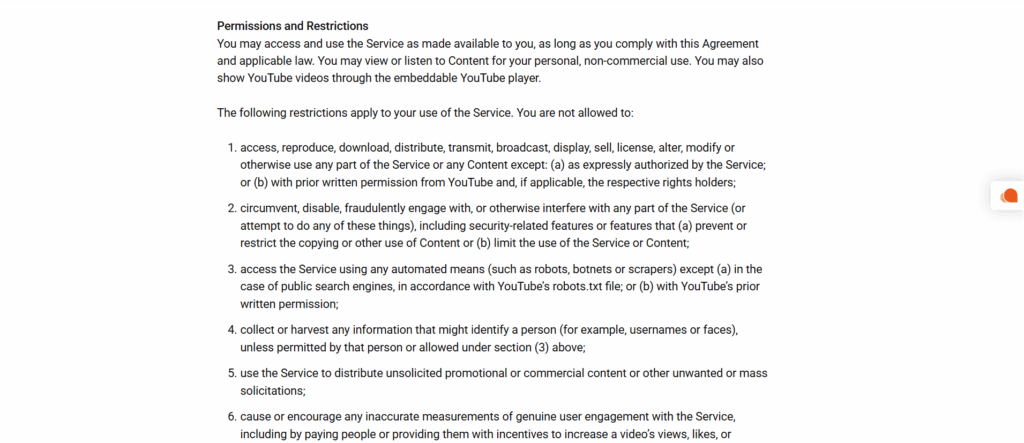
YouTube’s Terms of Service restrict reproducing or saving content unless the service expressly allows it or the user has the necessary permission. The terms also prohibit interfering with features that restrict copying or use. Rules can vary by country, and exceptions such as fair use or fair dealing depend on context, so this article is general information rather than legal advice.
For your own uploads, YouTube provides an official option through YouTube Studio. Its creator help page also explains that videos uploaded by other users are handled differently. If you only want to watch content without an internet connection, YouTube’s official offline viewing feature may be a better fit than creating a separate MP4 file.
8 Red Flags to Avoid
The fastest way to assess a converter is often to look for behavior that should not be necessary.
1. It asks for your Google password or two-factor code
A basic link-based converter should not need your Google account password, authentication code, recovery phrase, or session cookies. Never paste exported browser cookies into a third-party website.
2. It tells you to install an extension or unknown program
Be cautious if a website claims that conversion cannot continue until you add a browser extension, install a desktop program, or run a mobile app from outside an official app store. Extra software creates an additional security decision that is unrelated to producing a normal MP4 file.
3. The page opens repeated redirects or fake buttons
Multiple buttons labeled “Start,” “Play,” or “Convert” can be designed to send visitors to unrelated advertising pages. Leave the site if clicks trigger repeated tabs, fake security warnings, prize messages, or unexpected subscription screens.
4. It asks you to enable browser notifications
Notifications are not required for ordinary video conversion. Granting permission can allow a site to keep sending messages after you leave. Treat urgent alerts saying that your device is infected as suspicious, especially when they ask you to call a number or install software.
5. A CAPTCHA asks you to run commands
A normal CAPTCHA may ask you to select images or enter characters. It should not tell you to open a system dialog, paste a command, or run a script. The U.S. Federal Trade Commission has warned that fake CAPTCHA prompts can be used to make people run malware.
6. The result is not an MP4 file
If you selected MP4, an unexpected .exe, .msi, .dmg, .pkg, .apk, .scr, or password-protected archive is a major warning sign. Do not open it merely because the filename includes the video title.
7. The service promises to remove platform restrictions
Claims about bypassing private-video controls, age gates, membership access, regional controls, or other platform restrictions create both security and compliance concerns. A legitimate conversion workflow should not require circumvention.
8. There is no clear privacy or contact information
A privacy policy is not proof of good behavior, but its absence leaves important questions unanswered. Check whether the service identifies its operator, explains what data it processes, and provides a way to contact support.
A 7-Point Safety Checklist Before You Convert
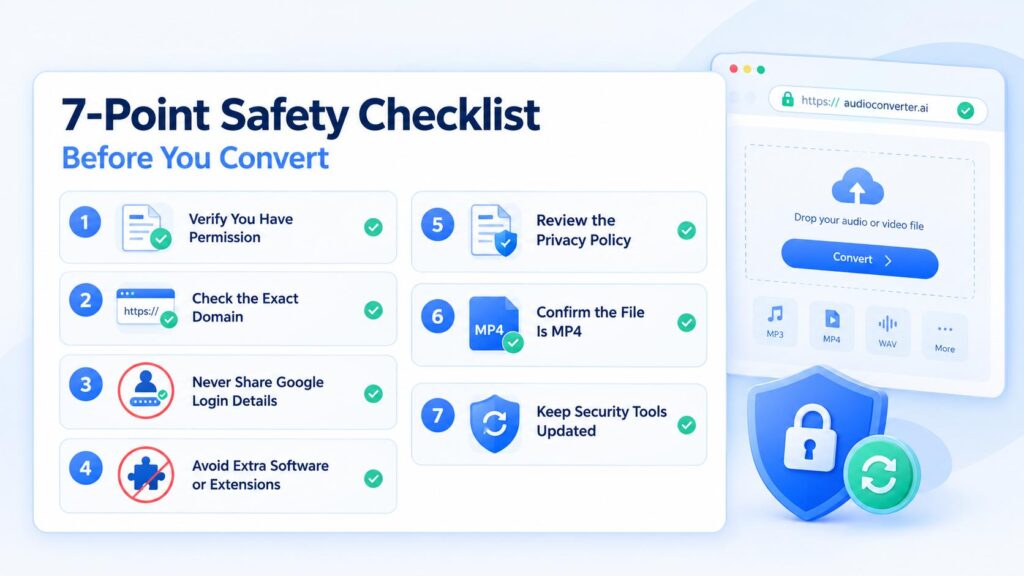
Use this checklist before entering a video link:
- Confirm authorization. Use only a video you own or are permitted to process.
- Check the exact domain. Misspelled domains and lookalike pages can imitate legitimate services.
- Do not sign in with Google. A public-link conversion should not require account credentials, cookies, or authentication codes.
- Reject extra software. Avoid extensions, configuration profiles, executable files, and command-line instructions that are not needed for a normal browser workflow.
- Review the privacy policy. Look for understandable information about data handling rather than vague promises of “complete privacy.”
- Inspect the result before opening it. Confirm that the extension is
.mp4and that no extra program or archive arrived with it. - Keep security tools current. An updated browser, operating system, and security scanner can reduce risk, although no scanner catches every threat immediately.
The FTC’s malware guidance recommends keeping security software updated, scanning new files, avoiding unfamiliar websites offering free media, and ignoring software advertisements that lead to unexpected installations. See the agency’s malware protection guidance for additional steps.
Does HTTPS Mean a Converter Is Safe?
No. HTTPS encrypts traffic between your browser and a website, which is important, but it does not certify the website’s intentions, business practices, or legal status. A deceptive site can also use HTTPS.
Treat the padlock as one basic requirement, not a final verdict. You still need to evaluate redirects, credential requests, file types, privacy disclosures, and permission to use the source content.
Is YouTube to MP4 Legal?
There is no universal yes-or-no answer for every video, user, and country. The relevant questions include:
- Who owns the video?
- Did the rights holder give permission?
- Does a license allow this particular use?
- Does YouTube provide an official feature for the intended action?
- Are local copyright exceptions relevant to the specific situation?
YouTube’s terms generally restrict copying or saving content unless it is authorized by the service or by YouTube and the relevant rights holders. Copyright law is separate from platform rules, and both may matter.
The safest editorial rule is simple: do not describe a publicly viewable video as automatically free to convert, keep, edit, redistribute, or use commercially. Educational intent also does not automatically create permission.
Is an Online Converter Safer Than Installed Software?
Browser-based conversion can reduce one category of risk because it may not require installing a program. That does not make every online service safe. A website can still use misleading ads, request excessive permissions, redirect visitors, or handle data poorly.
Installed software can be appropriate when it comes from a verified publisher and has a clear security reputation, but unknown programs and unofficial mobile packages deserve extra caution. The better question is not “online or installed?” It is “Can I verify who provides this, what it requires, and what it does?”
What to Do If Something Suspicious Happens
If a converter opens an unexpected page or produces an unfamiliar file:
- Close the page without interacting with additional prompts.
- Do not run the file, extension, script, or command.
- Review and remove notification or site permissions you may have granted.
- Update your device’s security software and run a scan.
- If you entered a password or authentication code, change the password from a trusted device and enable two-factor authentication.
- Check your browser for extensions you do not recognize.
The FTC advises people who suspect malware to stop entering sensitive information, update their security software, scan the device, and change exposed passwords.
Using Audio Converter AI Responsibly
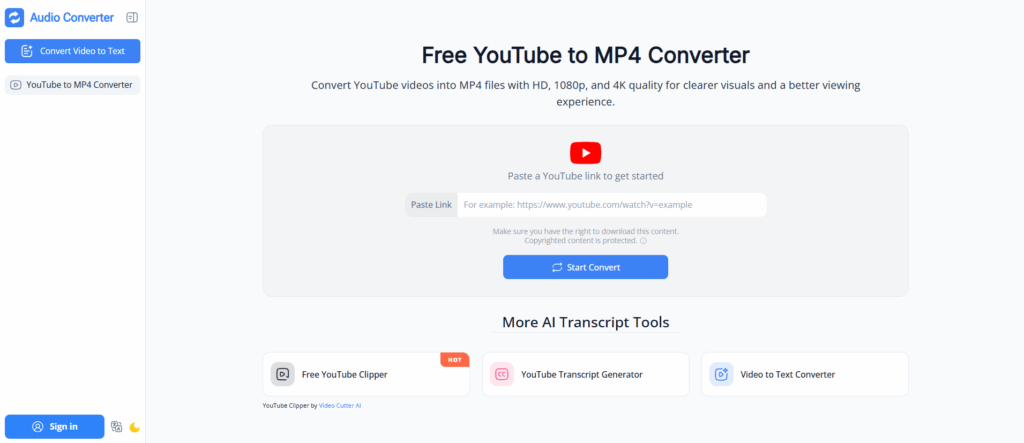
Audio Converter AI provides a browser-based YouTube to MP4 converter that does not require a software installation or account sign-up for the basic workflow. Before converting, make sure you own the video or have the rights and permissions required for your intended use.
If your goal is to turn spoken content into searchable text rather than create an MP4 file, you can also transcribe audio to text for notes, captions, interviews, and other authorized content workflows.
No online tool can remove the need to check content rights, source quality, and device security. If all you need is offline viewing, consider YouTube’s official options first. If you need an MP4 for your own or authorized content, follow the safety checklist above and keep the original source information with your project records.
Frequently Asked Questions
Are all YouTube to MP4 converters unsafe?
No blanket statement is accurate. Risk varies by the operator, website behavior, data practices, and the specific file delivered. Evaluate each service rather than trusting a generic “safe” label.
Can a safe YouTube to MP4 converter ask me to sign in?
A public-link conversion normally should not require your Google password, two-factor code, or browser cookies. Treat those requests as a reason to stop.
Is an MP4 file always safe to open?
No file type is an absolute guarantee. Confirm the extension, avoid unexpected bundled files, keep security software current, and be cautious when a result does not match what you selected.
Can I convert any public YouTube video?
Public visibility does not automatically grant permission to create a separate copy. Use videos you own, videos you are authorized to handle, or content whose license clearly permits your intended use.
What is the safest option for offline viewing?
When available, YouTube’s official offline viewing features are generally the lowest-risk choice because they keep playback inside YouTube’s supported environment.
Should a converter require a browser extension?
Not for a basic browser-based workflow. If an extension is presented as mandatory, verify the publisher and permissions carefully or choose a workflow that does not require it.
Final Takeaway
A safe YouTube to MP4 converter is not defined by one badge or promise. Safety begins with authorization and continues through website behavior, privacy requests, file integrity, and sensible device protection.
Use only content you own or are allowed to process. Never provide account credentials or browser cookies. Avoid sites that require extra software, run suspicious redirects, or promise to interfere with platform controls. When official YouTube features meet your needs, they are usually the simplest and lowest-risk place to start.