


Audio has become a daily information habit, not just background entertainment. Edison Research's Infinite Dial 2026 found that 76% of Americans age 12+ listen to online audio weekly, while National Public Media's 2026 audio report highlights that spoken-word audio is now part of daily routines for millions. Pew Research Center also reported in 2025 that more than half of U.S. adults listened to a podcast in the past year. That shift explains why more people now want to listen to articles instead of leaving every saved post on a screen.
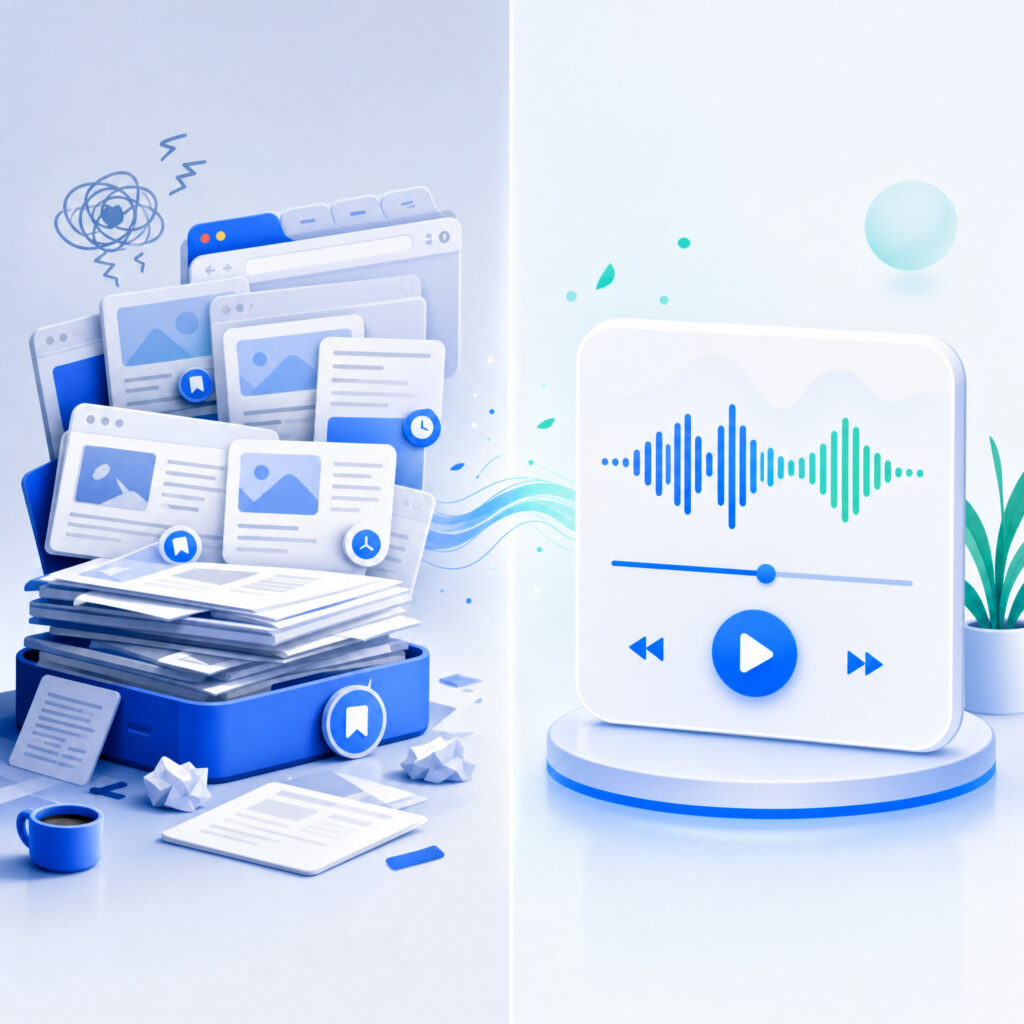
You saved fourteen articles this week. You opened two. The other twelve sit in a tab group you avoid, even though the topics still matter. The problem is not motivation. The problem is that reading needs your eyes, your posture, and a quiet block of time.
Learning how to listen to articles changes that pattern. You can turn a saved article into spoken audio and finish it during a walk, commute, workout, or chore block. A simple listen to articles routine gives your reading list the same convenience as a podcast queue.
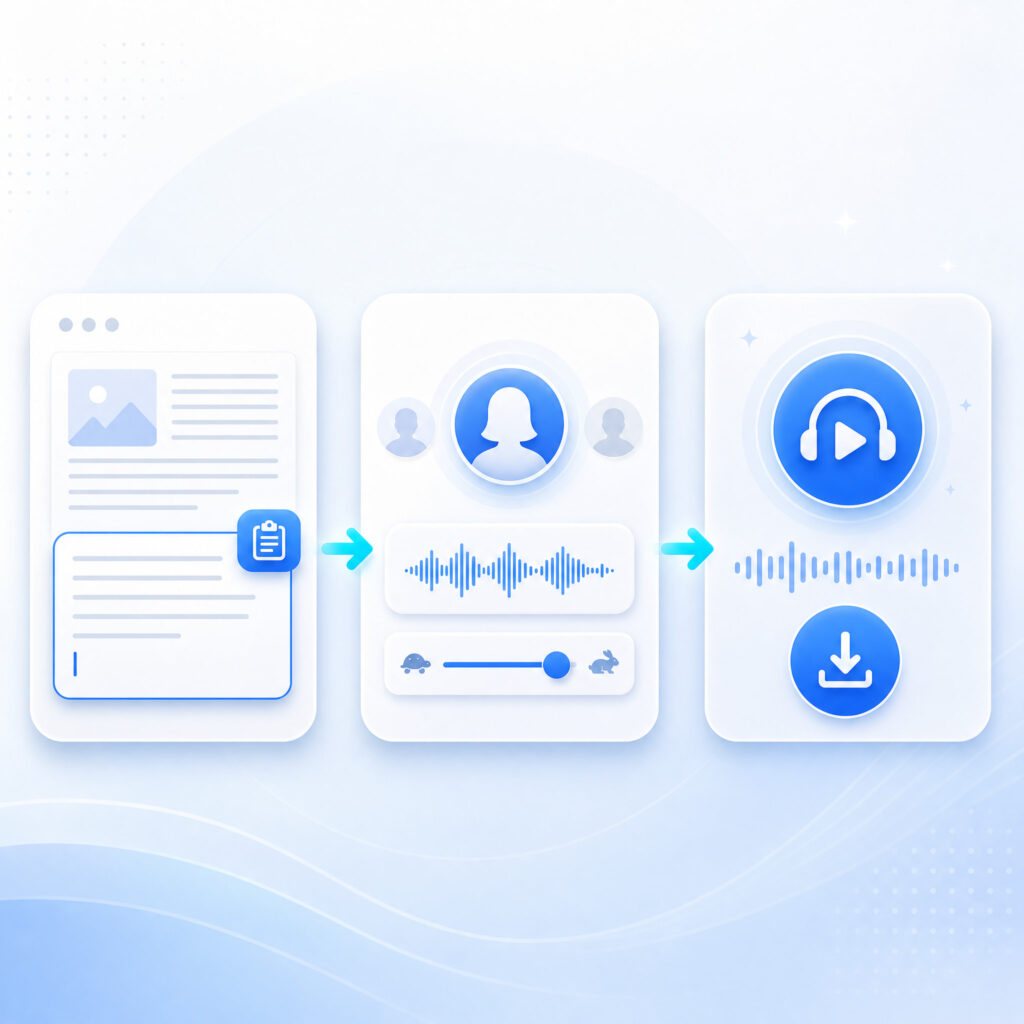
The workflow is short. Paste the article text into an AI text reader, choose a natural voice, then listen online or download the audio. Once you build a repeatable listen to articles habit, your saved list stops acting like storage and starts acting like study material.
Use this workflow when you need to:
- Turn newsletters into audio before they go stale
- Review study material without another screen session
- Finish saved essays during commutes or walks
- Convert research articles into repeatable listening notes
- Make a reading list easier to clear each week
Why Reading Lists Keep Growing
Reading Needs a Narrow Window
Reading is a focused visual task. You need your eyes, a screen or page, and enough attention to follow the argument. Most busy days do not offer many windows like that. The result is predictable. You save more than you read.
A listen to articles workflow works because it moves long-form content into flexible time. You cannot read while folding laundry, walking to class, or standing on a train. You can listen to articles during those moments without adding another screen session.
That is the core shift. The article stays the same, but the format changes. A listen to articles habit gives written content the mobility that podcasts already have.
Saving Is Easier Than Finishing
Read-later apps solve storage. They do not solve completion. Pocket, Instapaper, browser folders, and newsletter labels all make saving effortless. They also make the pile feel invisible until it becomes too large to face.
The better question is not how to save more links. The better question is how to listen to articles before they become stale. If an article is still useful, convert it into audio within a few days. That rule keeps the backlog from turning into a second inbox.
This is why the tool choice matters. A listen to articles workflow should be fast enough to use when the article is still relevant, not after the topic has already moved on.
Audio Fits the Time You Already Have
Most people already have small blocks of usable listening time. A twenty-minute commute can clear one industry essay. A thirty-minute walk can finish two shorter posts. A weekend cleaning block can turn a whole saved folder into finished reading.
This is where listen to articles habits become practical. Audio does not create more time. It reclaims time that was already available but hard to use for visual reading.
The 3-Step Workflow to Listen to Articles
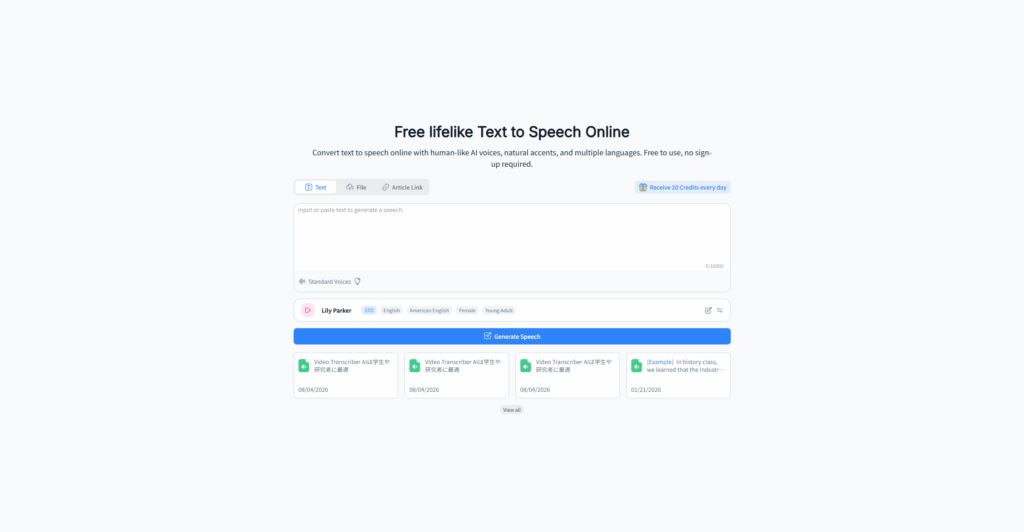
Step 1: Copy the Clean Article Text
Open the article you want to hear. Select the main body text, copy it, and paste it into your text reader. Clean input matters. Navigation labels, newsletter pop-ups, captions, and author bio text can interrupt the audio flow.
If the page is messy, use the browser reader view first. Then copy the simplified text. This keeps your listen to articles session focused on the article itself, not the page furniture around it.
For blocked selection, copy the article from a saved reading app or export a clean text version when available. The goal is simple: one article, one clean block of text, one listen to articles file.
Before you generate audio, remove:
- Duplicate headings or author bio snippets
- Navigation labels and menu text
- Newsletter sign-up prompts
- Related-article blocks
- Image captions that do not matter
Step 2: Choose a Natural Voice and Comfortable Speed
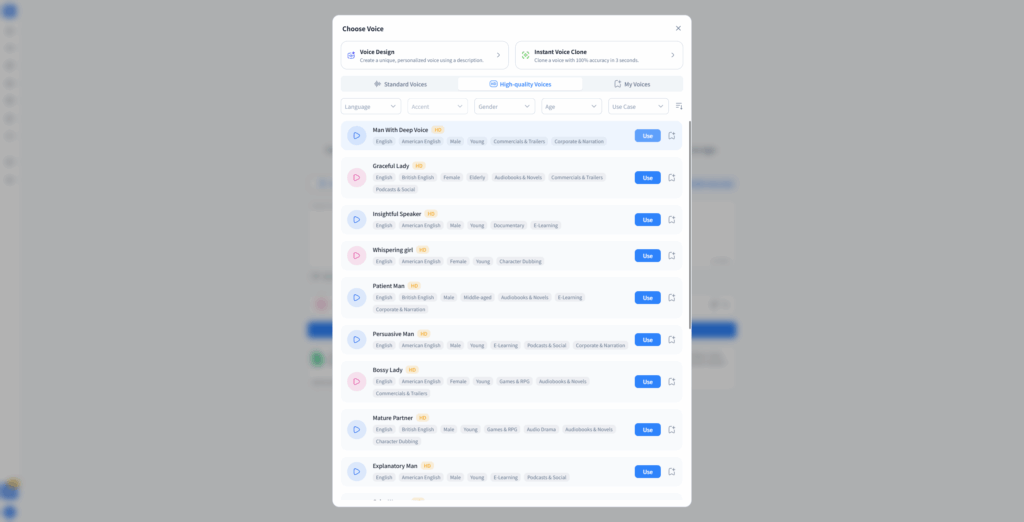
Voice quality decides whether a listen to articles routine lasts. A flat voice makes even a good essay feel tiring. A natural voice with clear pacing lets you follow argument, tone, and sentence structure with less effort.
Start at 1.0x for dense material. Move to 1.25x when the topic is familiar. Use 1.5x only when the article is light or when you are reviewing material you already read. A good listen to articles setup should feel calm, not rushed.
Language and accent matter too. Choose a voice that matches the article language and your listening comfort. If the article includes technical terms, names, or second-language vocabulary, a slower voice usually works better.
The transition from reading to listening should feel smooth. If the voice makes you work too hard, the listen to articles routine will not survive the week.
Step 3: Listen Online or Download the Audio
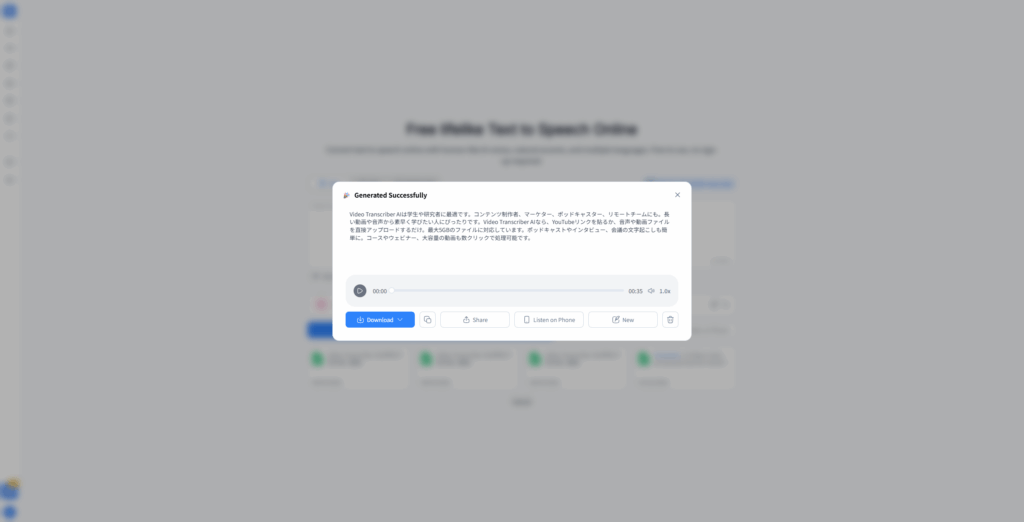
Press play when you are ready to listen. Online playback works well at a desk, in bed, or at home. Downloaded audio works better for commuting, travel, flights, campus walks, and any route with unstable signal.
Use listen to articles when you want a browser-based way to turn article text into audio. The link belongs inside the natural sentence because the anchor is the keyword itself.
Once you have the audio, give each article a real listening slot. Do not create another backlog of generated files. The point of listen to articles is completion, not a prettier queue.
Settings That Make Article Audio Easier to Finish
Start With Naturalness, Not Speed
Many people try to listen too fast on day one. That creates the wrong habit. Naturalness comes first because your brain has to understand the speech before speed helps.
Choose the clearest voice available. Then test thirty seconds of the article. If you drift, change the voice before changing the speed. A sustainable listen to articles routine depends on comfort across ten to twenty minutes.
That short test prevents a longer failure. A listen to articles session should feel easy by the first paragraph, because long-form content asks for patience.
Match Speed to Difficulty
Article type should control playback speed. Dense opinion pieces, academic summaries, legal explainers, technical tutorials, and financial analysis need slower playback. News recaps, simple listicles, and familiar updates can run faster.
Use this table as a starting point:
| Article Type | Best Starting Speed | Why It Works |
| New or technical article | 1.0x | You need time to follow terms and claims |
| Familiar topic | 1.25x | You already know the context |
| Light news or recap | 1.25x to 1.5x | The structure is easy to follow |
| Essay or narrative | 1.0x to 1.15x | Tone and rhythm matter |
| Review session | 1.5x | You are reinforcing, not learning from zero |
A listen to articles workflow should reduce friction. If you rewind more than twice in one section, slow down. Rewinding is a signal that the speed is wrong for the content.
Use Downloads for Unstable Listening Time
Streaming is fine at home. Downloads are safer for trains, cars, flights, gyms, and walks through low-signal areas. Nothing breaks a listen to articles session faster than losing the connection halfway through a good paragraph.
Batch downloads help when you have a full reading list. Convert three articles at once, then listen during the week. This makes listen to articles feel like podcast planning rather than another daily admin task.
When Should You Listen to Articles?
Commutes Turn Into Reading Time
A commute is the cleanest use case. You already have a fixed block of time. You already reach for audio. Replace one random podcast episode with one article from your saved list.
Prepare the file before you leave. Morning decisions are fragile, especially when you are late. A ready queue makes it easy to listen to articles without searching, copying, or adjusting settings on the platform.
For driving, keep the workflow hands-free after setup. Start the audio before the trip begins. Treat listen to articles like any other safe audio routine.
The best commute setup is simple:
- Pick one article before leaving
- Download the audio if the route has weak signal
- Use a comfortable voice speed
- Save technical articles for slower listening
- Stop when the article needs visual context
Walking and Exercise Keep Attention Moving
Walking works well for long reads because your body is busy and your mind stays available. The rhythm can make a dense article feel easier to follow than it does on a screen.
Use a slightly slower speed during exercise. Your attention is split, even during light movement. A good listen to articles pace lets you keep moving without losing the thread.
Save the hardest material for calmer walks. Use lighter articles for gym sessions, errands, and busy streets. That small sorting habit improves every listen to articles session.
That sorting step keeps the habit from becoming noisy. Listen to articles when the environment matches the difficulty of the content.
Chores Create Low-Stress Listening Blocks
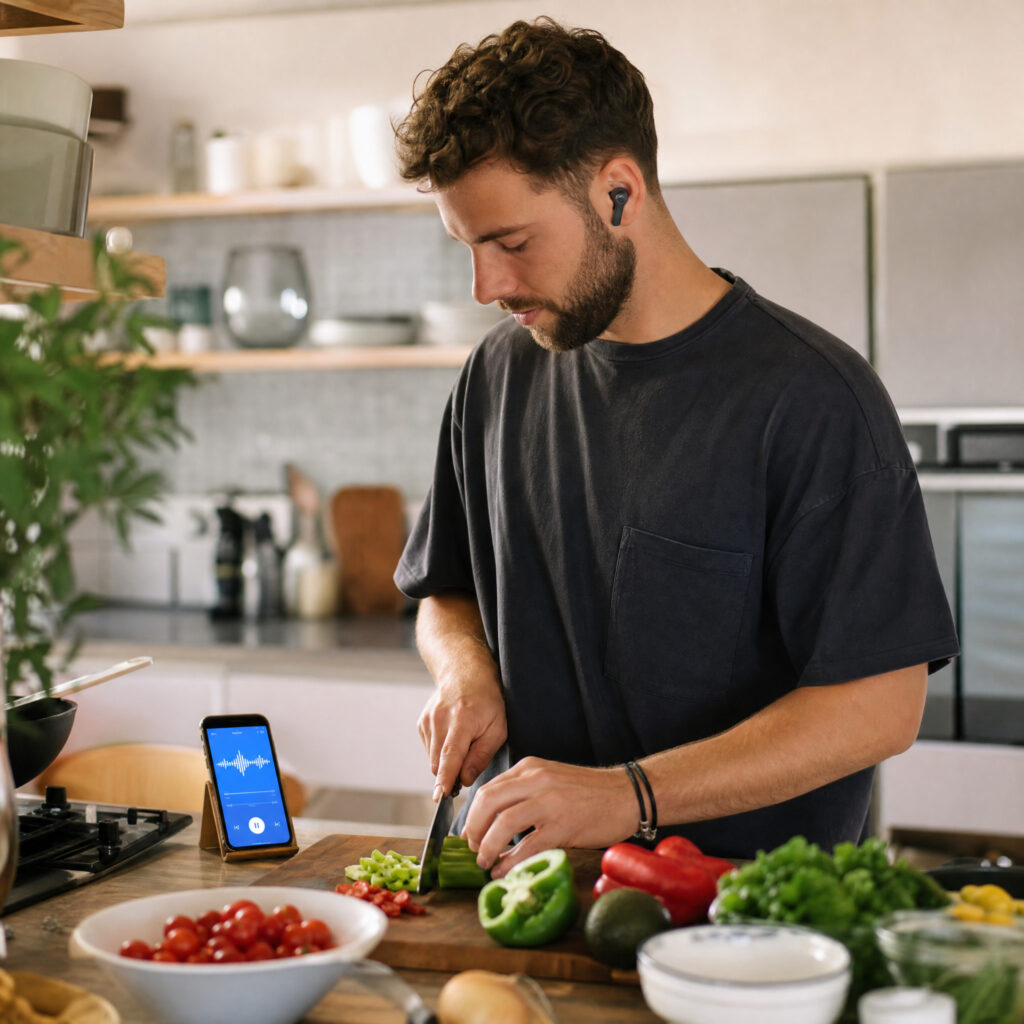
Cooking, cleaning, washing dishes, and folding laundry pair well with article audio. These tasks use your hands but leave enough attention for a clear essay or practical guide.
Create a short chore playlist before you start. Two medium articles can cover a full kitchen reset. One long analysis piece can carry you through a weekend cleanup. A listen to articles queue turns repetitive work into useful review time.
Avoid pairing article audio with tasks that need language or deep decisions. Do not listen to articles while writing emails, solving work problems, or reading another screen. That kind of multitasking weakens both tasks.
The better pairing is physical work plus written content. Listen to articles during low-demand movement, then save mental work for later.
Why Audio Converter AI Fits This Workflow
It Works in the Browser
A daily listen to articles habit should not begin with app installation. Browser access matters because you can paste article text and start quickly. That makes the workflow useful on a laptop, shared computer, or phone browser.
Audio Converter AI supports this lightweight routine. You open the tool, paste the text, choose a voice, and generate audio. Use listen to articles when you want the shortest path from saved post to spoken file.
This matters most when motivation is low. If the setup takes too long, the article stays unread. If the path is fast, listen to articles becomes the easier choice.
It Gives You Natural Voices
Natural voices make long content easier to finish. Article listening is different from hearing a short notification. You may spend fifteen minutes with one essay, so clarity and tone matter.
Audio Converter AI offers realistic voices across languages and accents. That helps when you listen to articles from international publications, language-learning sites, newsletters, or technical blogs with specialized terms.
Pick one default voice and keep it for a week. Constant tuning feels productive, but it often delays listening. A repeatable listen to articles routine works better when the default is good enough.
Once the voice feels right, keep it stable. The less you adjust, the easier it is to listen to articles as a routine instead of a setup task.
It Supports Online Playback and Downloads
Online playback lets you test an article immediately. Downloaded audio lets you keep listening later. Both options matter because real reading time rarely happens in one place.
Use listen to articles for one article first. If the routine works, batch a few saved pieces for the week. That turns listen to articles from a one-time trick into a practical backlog system.
For a weekly batch, group articles by listening context:
- Commute articles for focused but hands-free time
- Walk articles for essays and newsletters
- Chore articles for lighter reading
- Review articles for material you already skimmed
- Save-for-screen articles when charts or code matter
Common Mistakes That Make Article Audio Worse
Are You Pasting Messy Text?
Messy input creates messy audio. If you paste menus, buttons, comment prompts, captions, or related-article blocks, the voice will read them. That breaks focus and makes the article feel lower quality than it is.
Clean the text before generating audio. Remove navigation lines, duplicate headings, author bios, and promotional blocks. A clean listen to articles file should sound like one uninterrupted article.
Are You Listening Too Fast?
Speed can help review, but it can hurt comprehension. Many people copy their podcast speed into article audio and then blame the tool when the material feels hard.
Start slower. Increase only after your ears settle. If the article includes unfamiliar ideas, keep the speed near normal. Listen to articles for comprehension first, then use speed for review.
Are You Converting Too Many Articles?
Batching helps, but over-batching creates a new backlog. Ten generated audio files can become just as stale as ten saved tabs.
Convert only what you can finish this week. A strong listen to articles routine favors a small queue that gets completed. Three finished articles beat fifteen converted files you never play.
Are You Using Audio for the Wrong Content?
Not every article belongs in audio form. Visual-heavy tutorials, code walkthroughs, chart analysis, and design critiques often need your eyes. Audio can still help with the introduction or summary, but it should not replace the visual part.
Use listen to articles for essays, news analysis, newsletters, study notes, opinion pieces, research summaries, and long explainers. Keep visual tasks on screen.
How to Build a Weekly Listen to Articles Habit
Pick One Reliable Listening Slot
Habits need a place in the week. Choose one slot you already control, such as the morning commute, lunch walk, gym warmup, or Sunday chores. Then assign article audio to that slot.
Do not wait until you feel ready to read. The value of listen to articles is that it removes the need for perfect reading conditions. One reliable slot can clear more articles than a vague plan to read later.
Keep a Short Queue
A three-item queue is enough. One article can be urgent. One can be educational. One can be enjoyable. That mix keeps listen to articles from feeling like homework.
Refresh the queue once a week. Delete articles that no longer matter. Convert only the pieces you still care about. This small review keeps listen to articles connected to real intent, not old guilt.
Pair Listening With Light Recall
If the article matters, pause at the end and say the main point out loud. You can also jot one sentence into your notes app. This turns passive listening into active recall.
For work or school, replay the article once while scanning the original text. Listening plus visual review can make important details easier to remember. That is where a listen to articles routine becomes more than convenience.
FAQ
Can I listen to articles for free?
Yes. You can listen to articles for free with browser-based text-to-speech tools that offer daily free usage. Free access is enough for short posts, article sections, and first tests before you pay for a larger plan.
How do I listen to articles without downloading an app?
Open a browser-based text reader, paste the clean article text, choose a voice, and press play. Use listen to articles when you want to test the workflow without installing another app.
Does listening to articles help you remember them?
It can help when you use it actively. Listen once for the main idea, then replay harder sections while scanning the original text. Listen to articles works best when audio review leads to a short note, summary, or recall check.
What speed is best when I listen to articles?
Start at 1.0x for new or dense material. Move to 1.25x for familiar topics. Try 1.5x only for light recaps or review. The best listen to articles speed is the one that does not make you rewind.
Can I listen to articles offline?
Yes. Generate the audio while you have a stable connection, then download it before your commute or trip. Offline listening keeps your listen to articles routine working in tunnels, planes, gyms, and weak-signal areas.
What articles work best as audio?
Essays, newsletters, explainers, saved blog posts, study notes, and news analysis work well. Visual tutorials and chart-heavy content work less well. Listen to articles when the meaning lives mostly in the words.
Do I need an account to listen to articles?
Not for every tool. Some browser-based readers let you paste text and start immediately. For a low-friction test, use listen to articles and convert one saved article before building a longer routine.
Conclusion
Your reading list stops growing when you stop treating reading as an eyes-only task. The three-step workflow is simple: copy clean article text, choose a natural voice, and listen online or download the audio.
Listen to articles during the hours you already have. Commutes, walks, cooking, laundry, and errands all become useful reading time when the article becomes audio. Start with one saved piece today. If it works, protect one weekly slot and let the listen to articles habit do the quiet cleanup your tab group never could.