


Recorded audio piles up fast. One interview becomes three quote checks. One lecture becomes a study backlog. One podcast episode becomes show notes, captions, clips, and search copy. A clean mp3 to text workflow helps because it turns the file into a draft you can search, edit, and reuse. The useful part is not only the upload. The useful part is the review path after the transcript appears.
This workflow is built for readers who already have an MP3 file and need cleaner text. It covers preparation, upload, language settings, speaker cleanup, export choices, and final review. Audio Converter AI appears only where its current page supports the step.
Why Most MP3 Transcription Workflows Feel Broken
Most mp3 to text problems start before transcription begins. The audio file may include background music, room echo, missing speaker context, or clipped sections. A tool can create a draft, but it cannot know which product name, student name, quote, or timestamp matters to your project.
The better approach is to treat mp3 to text as a review workflow. Uploading the file is one step. Preparing the file, choosing settings, checking names, and exporting the right version make the output useful.
The transcript is treated as finished too early
Many users copy the first transcript and move on. That creates avoidable mistakes. Names can shift. Numbers can sound similar. Product terms may become ordinary words. A fast mp3 to text result still needs a short review pass before it becomes notes, captions, or source material.
This matters most for interviews, lectures, and podcasts. A private voice memo can survive small errors. A quoted interview cannot. A study note needs clear terms. A caption file needs cleaner timing. The same mp3 to text tool can support each case, but the review standard should change.
The output format is chosen too late
People often start mp3 to text conversion before deciding what the transcript must become. That creates extra cleanup. Plain notes need readable paragraphs. Captions need shorter segments. Research notes need speaker labels. Show notes need section summaries and selected quotes.
Choose the output target before you upload the file. That one decision changes how you review the transcript. It also keeps the mp3 to text workflow from turning into a second manual editing job.
The 5-Step Workflow to Turn MP3 Audio Into Usable Text
The best mp3 to text workflow is short, but it is not careless. It gives you a repeatable path from audio file to checked text. Use the same five steps for lectures, interviews, meetings, voice memos, and podcast drafts.
Step 1: Prepare the MP3 before uploading
Start by checking the file you already have. Play the first minute, one middle section, and the final minute. You are listening for silence, wrong files, heavy background sound, or a recording that cuts off early.
This check saves time. A bad source file creates a bad mp3 to text draft. If the recording is wrong, fix the source before you spend review time on the transcript.
Clear names make the mp3 to text output easier to match with the project later. They also reduce mistakes when you process several files in one work session.
Step 2: Upload the MP3 and confirm the source
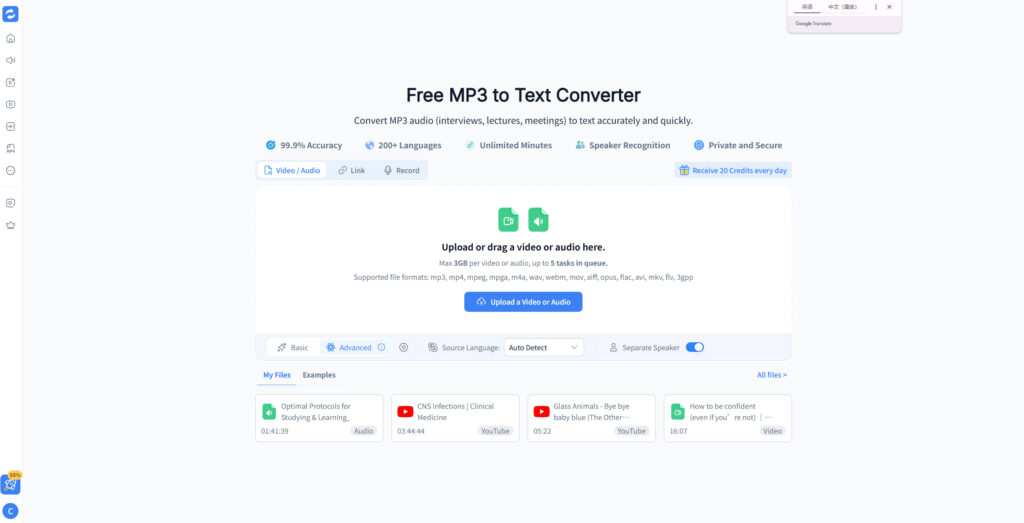
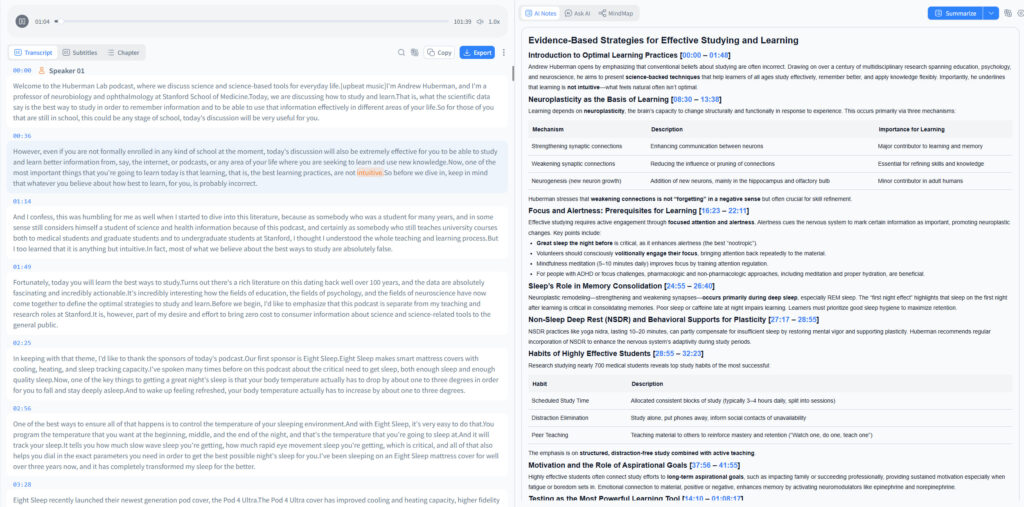
Open the converter and add the MP3 file. Audio Converter AI currently shows an upload area for video or audio files and lists MP3 among supported formats. The same page also shows common formats such as MP4, M4A, WAV, WebM, and MOV, but this workflow keeps the focus on MP3.
Use mp3 to text when your main goal is a transcript from a saved MP3 file. Do not turn this into a broad file conversion task. A narrow mp3 to text session makes review faster because every choice supports one output.
Step 3: Choose language and speaker settings
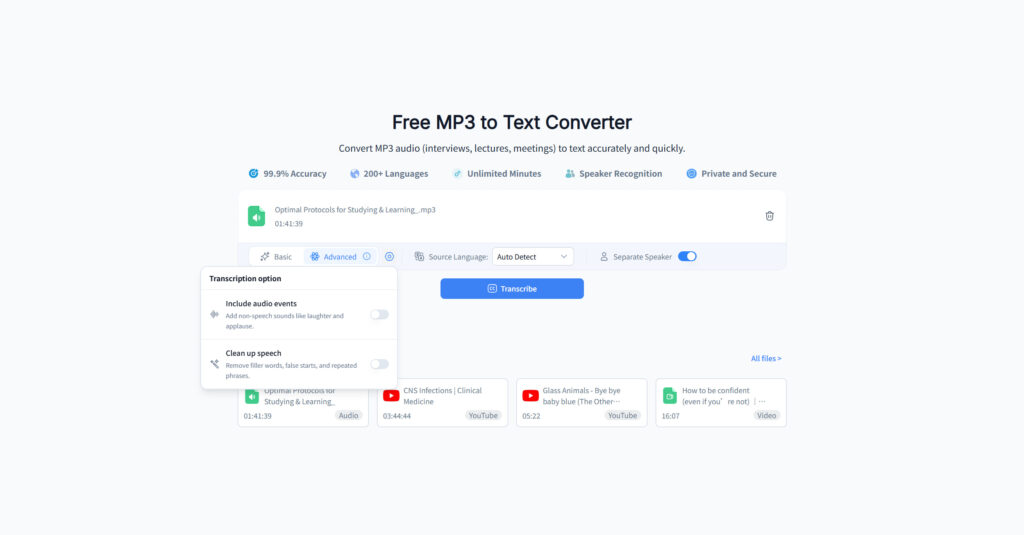
Set the source language before processing when you know it. If you do not know the source language, the current Audio Converter AI page shows an Auto Detect option. Use that only when the file may include uncertain language or when the speaker switches are not clear.
Turn on the separate-speaker option when the recording has more than one person. Speaker separation helps interview and meeting review, but it still needs checking. A good mp3 to text workflow treats speaker labels as helpful draft structure, not as final proof.
The practical rule is simple. For one speaker, keep the setup lean. For two or more speakers, use speaker separation and reserve time to correct labels.
Step 4: Review the transcript in passes
Review the mp3 to text result in focused passes. Do not try to fix everything at once. A single pass usually misses repeated names, numbers, and context-specific words.
Use this order:
- Check the beginning and end so the transcript covers the full file.
- Correct names, brands, places, and technical terms.
- Fix numbers, dates, prices, and measurements.
- Review unclear sections against the audio.
- Clean paragraph breaks for the final use.
This review order works because it starts with coverage, then moves to meaning. If the transcript skipped part of the file, paragraph cleanup does not matter yet. If key names are wrong, the mp3 to text output will not support search or citation.
Step 5: Export a version that fits the job
Export should match the next task. A study note needs readable text. A creator may need caption-ready text. A journalist may need a quote-checking draft. A team may need meeting notes with speaker context.
Do not keep only one messy file. Save a raw transcript and a cleaned version when the audio matters. The raw file gives you a reference point. The cleaned file gives you the version you can share, search, or reuse.
A repeatable mp3 to text workflow ends with a file that can move forward. That may mean a transcript for notes, a caption draft, a quote list, or a searchable archive.
Settings That Actually Matter for MP3 to Text
The best setting is the one that reduces review work. More options do not always mean a better transcript. For mp3 to text, three choices usually matter most: source quality, language, and speaker handling.
| Setting | Use it when | What to check after conversion |
| Auto Detect language | You are unsure of the source language | Confirm names and language-specific terms |
| Manual source language | You know the language before upload | Check accents and borrowed words |
| Separate Speaker | Two or more people speak | Verify each label against the audio |
| Plain transcript review | One speaker or short voice memo | Fix punctuation and paragraph breaks |
| Caption-style cleanup | Transcript will become subtitles | Shorten long lines and check timing context |
Source quality sets the ceiling
Clear audio makes mp3 to text review easier. A clean recording has stable volume, limited background noise, and speakers close to the microphone. A rough recording may still produce usable text, but it needs more checking.
If the audio contains music, echo, overlap, or distant voices, plan a longer review. Do not blame every issue on the tool. A damaged source file limits every mp3 to text workflow.
Language choice affects cleanup time
Language settings matter because names and borrowed words can confuse transcription. Use a known language when possible. Use Auto Detect when the recording source is uncertain.
After conversion, scan for repeated mistakes. If one term appears wrong once, it may appear wrong many times. A quick find-and-replace pass can make the mp3 to text output cleaner in minutes.
Speaker handling should match the recording
Separate speakers help when a file contains interviews, meetings, panels, or classroom discussion. They add structure. They also create a new review task because speaker labels can drift when voices overlap.
For a one-person recording, speaker separation may add little value. Keep the mp3 to text workflow simple when the source is simple.
When to Use This MP3 to Text Workflow
Use the workflow when the transcript will support another task. That is where mp3 to text creates the most value. A transcript is rarely the final destination. It is the working layer between audio and a cleaner output.
Interviews and source material
Interviews need careful review. A transcript can help you find quotes and themes, but it should not replace listening to the key sections. Use mp3 to text to create a searchable draft, then verify any quote before publishing it.
This workflow helps because it separates draft creation from quote approval. You can move quickly without pretending the first pass is final.
Lectures and study notes
Students often need recordings turned into review material. The mp3 to text workflow can turn a lecture into searchable notes, but the cleanup should focus on headings, terms, formulas, and examples.
Do not try to polish every sentence. Make the transcript useful for review. Mark unclear terms and check them against slides, books, or class notes.
Podcasts and creator assets
Podcast teams can use mp3 to text to create show notes, caption drafts, episode summaries, and quote pulls. The review pass should focus on guest names, product names, segment breaks, and links that will be added later in the publishing tool.
The same transcript can support several assets. That is why a repeatable mp3 to text workflow matters for creators.
Why Audio Converter AI Fits This Workflow
Audio Converter AI fits this mp3 to text workflow because the current MP3 page supports a file-first transcription path. The page shows an upload area for audio or video, an Auto Detect language option, a Separate Speaker option, and MP3 among supported formats.
That combination is enough for a practical workflow article. It lets the user focus on the saved MP3 file, then review the transcript for the real task. The product page also shows daily credits, but credit rules can change, so this article avoids treating them as a permanent promise.
The workflow starts from a saved file
Many users do not need a live meeting bot. They already have an MP3. A browser-based mp3 to text workflow fits that job because the source exists before the tool opens.
Use mp3 to text when you want a direct path from saved audio to transcript review. Keep a human review pass for important names, numbers, and quotes.
The page supports language and speaker decisions
The visible page controls support two workflow choices: language handling and separate speakers. Those are the decisions that affect review time most often.
For one-person voice notes, keep settings simple. For interviews and meetings, use speaker separation and review labels carefully. That keeps mp3 to text useful without overstating what any transcription tool can guarantee.
Common Mistakes When You Convert MP3 to Text
Most mistakes come from rushing. The upload is fast, but the transcript still has to match the job. A careful mp3 to text workflow prevents small errors from becoming publishing mistakes.
Mistake 1: Skipping the source-audio check
Do not upload blindly. Play a few sections first. If the file is silent, clipped, or the wrong version, the transcript will waste your time.
Fix: Check the beginning, middle, and end before conversion. Rename the file clearly. Then start the mp3 to text process.
Mistake 2: Trusting names and numbers too quickly
Transcripts can look clean while still missing names, figures, or product terms. These mistakes are hard to catch later because the sentence may still read naturally.
Fix: Make a list of expected names, brands, places, and numbers before review. Search for those terms after conversion. This makes mp3 to text review faster and safer.
Mistake 3: Using one transcript for every output
A raw transcript is not always the best final file. Notes, captions, quotes, and summaries need different cleanup.
Fix: Save a raw transcript first. Then create a cleaned version for the specific job. A reusable mp3 to text workflow should protect the source and the edited output.
Mistake 4: Turning every file into a long editing project
Not every recording needs heavy cleanup. A private voice memo may only need readable text. A published interview needs more care.
Fix: Match review depth to risk. The more public or sensitive the output, the more time the mp3 to text review deserves.
FAQ
How do I convert an MP3 to text in 2026?
Upload the MP3, choose the source language when you know it, enable speaker separation when more than one person talks, run the transcription, then review the draft. A good mp3 to text workflow includes source checks, transcript review, and export cleanup.
Can I transcribe an MP3 for free online?
Many online tools offer free access or free credits, but limits can change. Check the current tool page before starting a large project. Use mp3 to text for a browser-based test, then review the transcript before relying on it.
Is MP3 to text accurate enough for interviews?
MP3 to text can create a useful interview draft when the recording is clear. You should still verify names, quotes, dates, numbers, and unclear sections against the audio. Treat the transcript as a review layer, not a final source.
What should I check after converting MP3 to text?
Check coverage first, then names, numbers, speaker labels, paragraph breaks, and sections with background noise. This order keeps mp3 to text review practical because it catches structural problems before smaller edits.
Can MP3 to text help with lecture notes?
Yes. MP3 to text can turn lecture recordings into searchable notes. Focus cleanup on headings, key terms, examples, formulas, and unclear sections. You do not need to polish every sentence if the transcript is for study review.
Should I use speaker separation for every MP3?
No. Use speaker separation when two or more people talk. Skip it for simple one-speaker recordings unless the tool requires it. The best mp3 to text setup matches the recording rather than adding extra review work.
What is the best export format after MP3 to text?
Choose the format based on the next task. Plain text works for notes. Caption workflows need shorter lines and timing context. Quote review needs a clean transcript plus the original audio. The mp3 to text export should support the job after transcription.
Conclusion
MP3 to text works best as a workflow, not a one-click finish line. Start with a quick source check. Upload the right file. Choose language and speaker settings. Review the transcript in passes. Export the version your next task needs.
Use mp3 to text when you need a saved MP3 turned into editable text. Keep the review pass. The cleanest result comes from pairing fast transcription with a careful check of names, numbers, speakers, and output format.