


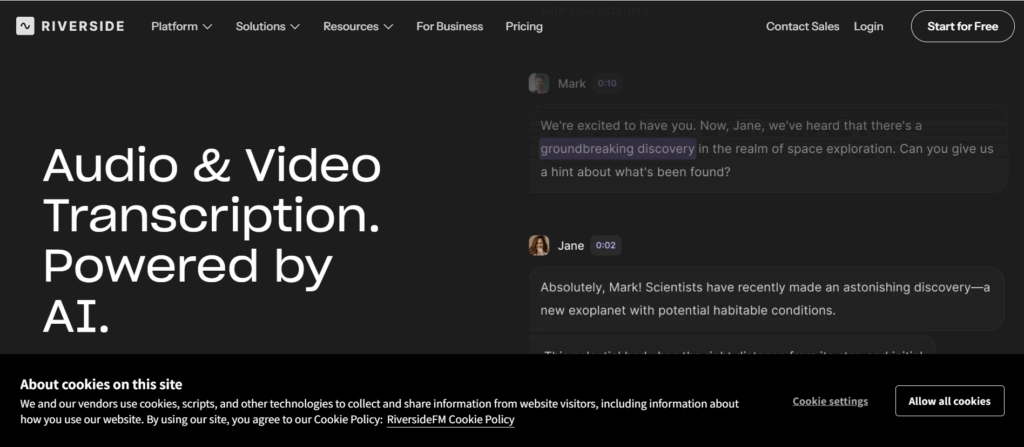
Riverside is best known as a remote recording platform for podcasts, interviews, webinars, and video content. Transcription is part of that wider production workflow, but Riverside also provides a free standalone tool for converting uploaded audio and video into text.
That creates an important distinction.
If you only need to transcribe an existing MP3 or MP4 file, the free transcription page may be enough. If you record interviews remotely and want transcripts, captions, text-based editing, show notes, and social clips inside one workspace, Riverside Studio offers a much broader toolset.
This Riverside video transcription review examines both options, including their accuracy claims, speaker handling, export formats, workflow limitations, pricing, and public user feedback. It also explains when a simpler file-to-text service may be a better fit.
Evaluation note: This review is based on Riverside’s current product documentation, published plan information, and recurring themes in public user feedback. It does not present a controlled transcription benchmark. Accuracy varies significantly with recording quality, speakers, accents, and background noise.
Quick Answer: Is Riverside Good for Video Transcription?
Riverside is a strong option for people who already use the platform to record podcasts, interviews, or remote video sessions.
Its main advantage is not transcription alone. The value comes from connecting transcription with local multitrack recording, speaker-based editing, captions, show notes, and content repurposing.
Riverside may be a good fit if you:
- Record remote interviews or podcasts
- Need separate audio and video tracks for each participant
- Want to edit a recording by changing its transcript
- Create captions, clips, summaries, or show notes from the same project
- Prefer an all-in-one recording and editing workflow
It may be less practical if you:
- Mainly transcribe audio or video files that already exist
- Need reliable speaker separation from a free upload tool
- Want to upload many files without opening a full production workspace
- Need support for a wider range of media formats
- Only want a clean transcript rather than video editing features
For occasional single-speaker files, Riverside’s free transcription tool is easy to access. For repeated file conversion, multilingual uploads, or larger files, a dedicated service such as Audio Converter AI may offer a more direct workflow.
What Is Riverside Video Transcription?
Riverside video transcription converts speech from a recording or uploaded media file into written text. Depending on how Riverside is used, that transcript can serve several purposes:
- A readable record of an interview or meeting
- Subtitles for a video
- A starting point for an article or podcast description
- A text-based interface for editing audio and video
- Source material for chapters, summaries, and social clips
Riverside currently provides two different transcription workflows.
1. Riverside’s Free Online Transcription Tool
The Riverside free transcription tool is designed for quick file-to-text conversion.
Users can upload a supported audio or video file, select the spoken language, and generate a transcript without creating an account. Riverside lists support for common formats including:
- MP3
- WAV
- MP4
- MOV
The completed transcript can be copied or downloaded as a TXT or SRT file.
A TXT file contains plain transcript text. An SRT file includes timestamps that video platforms and editing programs can use to display subtitles.
The free tool is convenient for simple tasks, but it should not be confused with the complete Riverside Studio experience. Riverside notes that a free multi-speaker upload may place all dialogue under one speaker instead of separating the participants correctly.
2. Transcription Inside Riverside Studio
Riverside Studio connects transcription with its recording and editing platform.
The platform can record each participant locally and preserve separate tracks. Local recording means the audio and video are captured on each participant’s device instead of depending entirely on the live internet connection. After the session, those tracks are uploaded and synchronized.
Inside the Studio workflow, a transcript can be used to:
- Identify different speakers
- Navigate to specific moments in a recording
- Remove sections by deleting transcript text
- Create captions
- Generate summaries and show notes
- Find highlights for short clips
- Edit audio and video in the same project
This is where Riverside offers more value than a basic transcription website. It treats the transcript as part of a content-production system rather than as the final output.
Riverside Free Transcription vs Riverside Studio
| Feature | Free Transcription Tool | Riverside Studio |
| Account required | No | Yes |
| Best use case | Occasional file-to-text conversion | Recording and editing complete projects |
| External file upload | Yes | Yes |
| Supported languages | 100+ claimed | 100+ claimed |
| Speaker separation | Limited for free uploads | Available within supported Studio workflows |
| Text-based editing | No | Yes |
| TXT export | Yes | Yes |
| SRT subtitle export | Yes | Yes |
| Local multitrack recording | No | Yes |
| AI summaries and show notes | No | Available on eligible plans |
| Video editing | No | Yes |
| Recording quality options | Not applicable | Up to 4K video and 48 kHz audio on eligible plans |
The free tool is the faster route when the only goal is obtaining text. Studio is more suitable when transcription is one step in a recording, editing, and publishing process.
How Accurate Is Riverside Transcription?
Riverside advertises transcription accuracy of up to 99% across more than 100 languages. The phrase “up to” matters: it describes a potential best-case result rather than a guaranteed accuracy level for every recording.
No automatic transcription service can maintain the same accuracy under all conditions. Results depend heavily on the quality of the source recording.
Clear Single-Speaker Recordings
Automatic transcription usually performs best when:
- One person speaks at a time
- The microphone is close to the speaker
- The recording has little background noise
- Speech is clear and consistent
- The selected language matches the recording
- The file has not been heavily compressed
A clean podcast introduction, lecture, or voice memo is therefore likely to require less correction than a noisy group conversation.
Multiple Speakers
Multi-speaker transcription creates an additional challenge known as speaker diarization.
Speaker diarization is the process of deciding who spoke each line. The words themselves may be recognized correctly even when they are assigned to the wrong person.
Riverside Studio has an advantage here because it can record participants on separate tracks. When each person has an independent track, identifying speakers is easier than analyzing a single mixed recording.
The free upload tool is more limited. Riverside states that multi-speaker files processed through the free tool may be presented as if one speaker delivered the entire transcript.
For interviews, panel discussions, and group podcasts, this difference can materially affect the amount of editing required.
Accents, Noise, and Specialized Vocabulary
The claimed 100+ language coverage is useful for multilingual creators, but language support does not mean every accent or recording condition produces identical results.
Common sources of transcription errors include:
- Strong regional accents
- Several people speaking simultaneously
- Music under dialogue
- Echo or room noise
- Low microphone volume
- Technical terminology
- Product and company names
- Abbreviations
- Names of people and places
- Recordings that switch between languages
Legal, medical, academic, and technical recordings should still be reviewed by a person before the transcript is published or used for an important decision.
Riverside’s accuracy claim is therefore most meaningful for clean recordings. It should not be interpreted as a guarantee that only one word in every hundred will require attention.
Text-Based Editing Is Riverside’s Strongest Feature
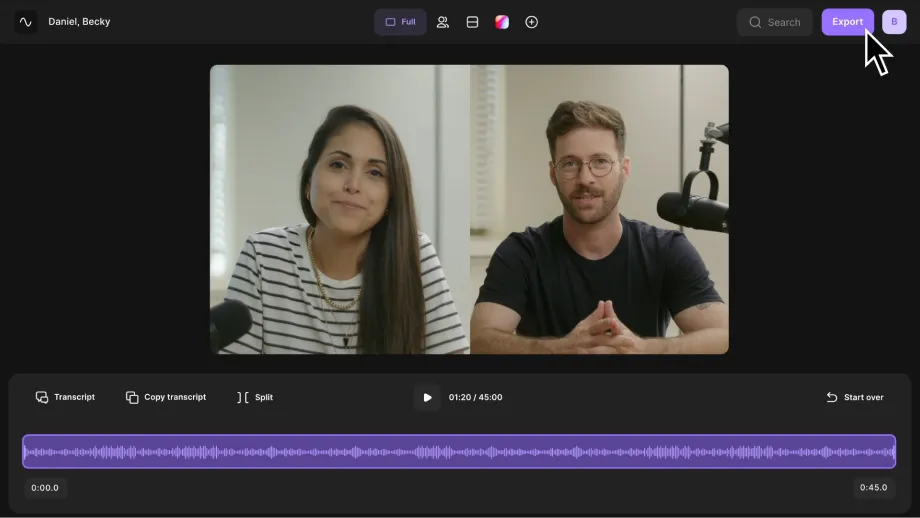
The most distinctive part of Riverside transcription is its connection to text-based editing.
With text-based editing, the transcript becomes a control surface for the recording. Deleting a word, sentence, or paragraph from the transcript removes the corresponding portion of audio or video from the timeline.
This is useful for creators who find conventional video-editing timelines difficult or slow.
For example, a podcast editor can:
- Search the transcript for a topic.
- Remove a repeated explanation.
- Delete a long pause or unwanted section.
- Turn selected passages into clips.
- Add captions to the edited video.
This workflow is much more valuable than plain transcription when the recording still needs to be shaped into finished content.
However, it also explains why Riverside can feel excessive for users who already have a completed file and only need a transcript. In that situation, many of the platform’s recording and editing features add complexity without improving the basic file-to-text task.
Speaker Detection and Transcript Editing
Riverside’s speaker workflow is best suited to sessions recorded within its own environment.
Because participants can be stored on separate tracks, the platform has more structural information than a transcription tool receiving one mixed audio file. This can make speaker labels easier to manage.
Users should still review:
- Speaker names
- Moments where people interrupt one another
- Short acknowledgements such as “yes” or “right”
- Sections with overlapping voices
- Changes between microphones
- Imported files containing several speakers on one track
Speaker labels are especially important when a transcript will be republished as an interview, meeting record, research source, or customer story.
A transcript can appear readable while still attributing an important statement to the wrong participant. That is why speaker review should be a separate editing step rather than part of a quick spelling check.
Transcript and Caption Exports
Riverside’s free tool focuses on two practical export formats:
- TXT: Plain text for documents, articles, notes, or further editing
- SRT: Timestamped subtitle text for video players and editing software
SRT is the more useful option when the goal is adding captions to YouTube, social video, courses, or presentations. Each block contains the subtitle text and the time range during which it should appear.
TXT is better when the transcript will be:
- Edited in a document
- Summarized
- Added to a blog
- Stored as notes
- Used as research material
- Processed by another writing tool
The available formats cover common transcription and captioning needs. Users requiring more specialized formats or a broader conversion workflow should confirm current export support before choosing a paid plan.
AI Show Notes, Summaries, and Content Repurposing
Inside Riverside Studio, transcripts can support more than captions.
Depending on the plan and current product configuration, Riverside can use recorded content to help generate:
- Show notes
- Summaries
- Chapters
- Titles
- Descriptions
- Social media clips
- Highlight selections
These tools are useful for creators producing several assets from one long recording.
A 45-minute interview, for example, might become:
- One full podcast episode
- One captioned YouTube video
- Three short social clips
- A written summary
- A set of show notes
- Several promotional posts
This is Riverside’s clearest advantage over a standalone transcription tool. The transcript is connected to the original media and can drive the rest of the editing workflow.
The quality of AI-generated summaries and clips still depends on the transcript. Names, technical terms, and key claims should be corrected before generated materials are published.
Riverside Pricing and Free Limits
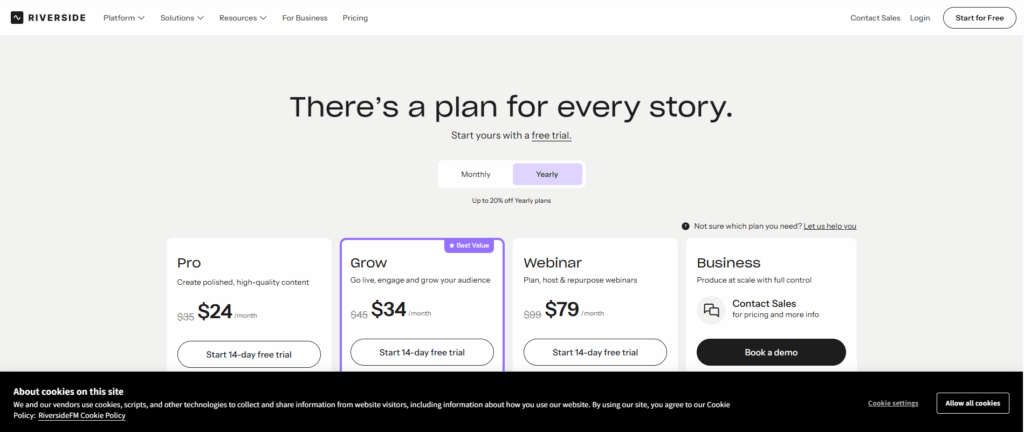
Riverside’s plan structure can change, so the current Riverside pricing page should be checked before purchasing.
As of September 2026, Riverside presents a free plan alongside paid recording and production plans. Paid tiers increase recording capacity and can add features such as:
- Higher recording resolution
- 48 kHz audio
- Additional multitrack recording hours
- No Riverside watermark
- AI transcription
- Show notes
- Audio enhancement
- Expanded editing and production tools
The free standalone transcription page is different from the free Studio plan. A user can access basic file transcription without needing the complete recording subscription, but advanced speaker and editing features belong to the wider Studio workflow.
This distinction is easy to miss when comparing Riverside with dedicated transcription services.
The relevant question is not simply, “Is Riverside transcription free?” It is:
Does the free workflow include the speaker handling, editing, export, and production features required for this project?
For a simple single-speaker file, the answer may be yes. For a recurring interview workflow, the useful features may sit inside a paid plan.
What Do Riverside Users Say?
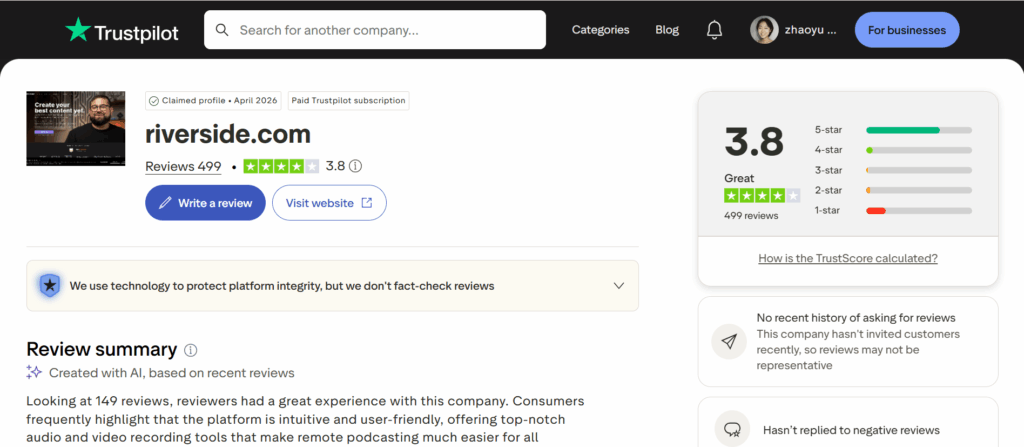
Public reviews show a more mixed picture than Riverside’s product pages alone.
At the time of this review, Riverside’s Trustpilot profile displayed a score of 3.8 out of 5 from 499 reviews. Approximately 69% were five-star reviews, while 19% were one-star reviews.
These numbers should be interpreted carefully. Trustpilot also notes that the profile includes merged reviews and may not represent the complete customer base.
Positive feedback commonly mentions:
- Clear remote recordings
- Separate participant tracks
- Convenient transcripts
- Fast creation of clips and captions
- A relatively accessible editing workflow
- Audio-enhancement features
- The convenience of keeping recording and editing together
Critical feedback commonly mentions:
- Occasional recording or upload failures
- Software glitches
- Inconsistent editing or AI results
- Billing and refund frustrations
- Variable customer-support experiences
A podcasting discussion on Reddit shows a similarly divided response.
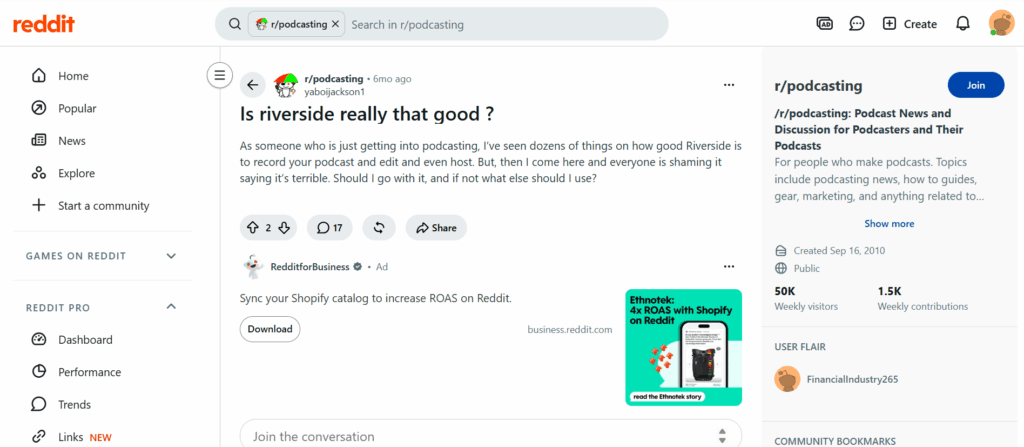
Some users describe Riverside as dependable for remote interviews and value local multitrack recording. Others report technical problems, resource requirements, or frustration when a recording does not process as expected.
These are individual experiences rather than controlled evidence. Still, they highlight an important practical point: Riverside is handling recording, uploading, synchronization, transcription, and editing in one workflow. That creates more capability, but it also creates more places where technical issues can occur.
For important interviews, users should follow basic recording safeguards:
- Ask participants to use a supported browser or current app
- Close unnecessary programs
- Use a stable device with sufficient storage
- Avoid leaving the session before uploads finish
- Check that each participant’s track has completed uploading
- Keep a secondary audio recording when the session cannot be repeated
Riverside Video Transcription: Main Advantages
1. Recording and Transcription Are Connected
Riverside does not require creators to move every recording into a separate transcription system. For regular podcast and interview production, this can save time.
2. Separate Tracks Improve the Editing Workflow
Local multitrack recording gives editors more control over individual speakers and can make interviews easier to clean up.
3. Text-Based Editing Is Accessible
Removing media by editing text is easier for many users than working directly with a complex video timeline.
4. Useful Creator Features
Captions, show notes, summaries, and clips can all begin with the transcript. This helps turn one recording into several publishable assets.
5. A Free Tool Is Available
Users with a simple file can try basic transcription without creating an account or purchasing a complete Studio plan.
6. Broad Language Coverage
Riverside advertises support for more than 100 languages, which covers many common creator and business use cases.
Riverside Video Transcription: Main Limitations
1. The Free Tool Has Limited Speaker Handling
A multi-speaker upload may be combined under one speaker. This limits its usefulness for interviews and meetings unless the transcript is edited manually.
2. The 99% Figure Is a Best-Case Claim
Real accuracy depends on microphones, background noise, accents, vocabulary, and overlapping speech. The published figure should not be treated as a universal result.
3. It Can Be Too Much Platform for a Simple Task
Users who only need to transcribe an existing file may not benefit from recording rooms, video editing, clips, and production features.
4. Public Reliability Feedback Is Mixed
Many users report successful long-term use, but others describe recording, processing, or support problems. High-value recordings still require backup precautions.
5. Advanced Value Is Tied to the Studio Workflow
Riverside’s most useful features—separate tracks, text-based media editing, and content repurposing—are not the same as its basic free upload tool.
6. Export Needs May Vary
TXT and SRT cover common text and caption requirements, but teams with specialized transcript formats should confirm compatibility before committing to a workflow.
Riverside vs Audio Converter AI
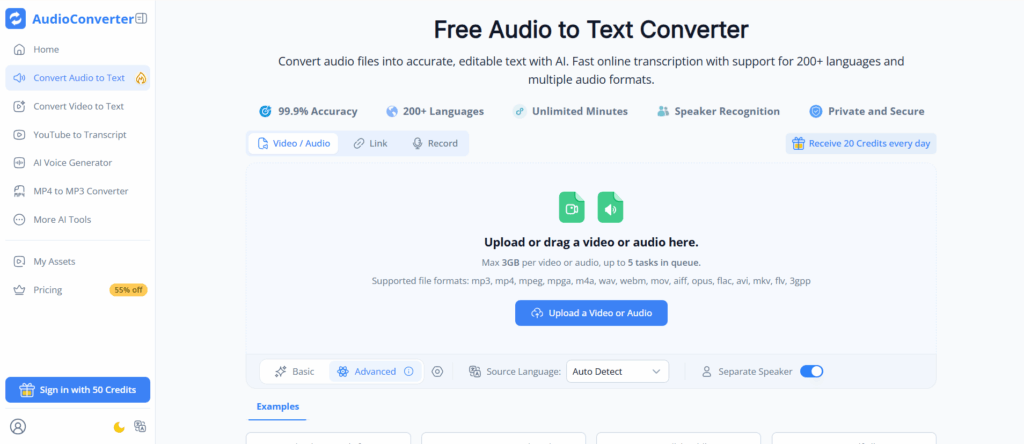
Riverside and Audio Converter AI overlap in transcription, but they are designed around different primary tasks.
Riverside begins with recording and content production. Audio Converter AI begins with an existing media file that needs to be converted or transcribed.
| Category | Riverside | Audio Converter AI |
| Primary purpose | Remote recording, editing, and content production | Direct audio/video conversion and transcription |
| Best for | Podcasts, interviews, remote video, creator workflows | Existing files that need text or format conversion |
| Standalone transcription | Available | Core workflow |
| Language coverage | 100+ languages claimed | 200+ languages claimed |
| Speaker recognition | Stronger within supported Studio workflows | Optional speaker separation |
| Text-based video editing | Yes | No |
| Local multitrack recording | Yes | No |
| Common transcript outputs | TXT and SRT | TXT and SRT |
| Supported file types | Focused on common audio/video formats | Broader conversion-oriented format support |
| Maximum upload | Depends on current Riverside workflow | Up to 3 GB listed |
| Learning curve | Higher because of the broader production platform | Lower for direct file-to-text tasks |
The language, accuracy, and upload figures above are product claims rather than independent benchmark results.
Choose Riverside When:
- The recording has not happened yet
- Several remote guests need separate tracks
- Video and audio will be edited after transcription
- The transcript will be used to create clips or show notes
- One integrated creator workspace is preferred
Choose Audio Converter AI When:
- The media file already exists
- The goal is primarily converting speech to text
- A broader range of audio and video formats must be uploaded
- Files may be as large as 3 GB
- Multilingual transcription is a regular requirement
- Recording rooms and video-production tools are unnecessary
Neither workflow is universally better. Riverside offers more production capability, while Audio Converter AI offers a more focused path from file to transcript.
Who Should Use Riverside?
Riverside is most suitable for:
- Podcasters recording remote guests
- Video interview channels
- Marketing teams creating customer interviews
- Webinar and virtual-event producers
- Content creators repurposing long recordings
- Teams that want recording, transcription, editing, and clips in one place
Riverside may be less suitable for:
- Users processing an archive of existing files
- Researchers who only need plain transcripts
- Teams requiring a lightweight upload-and-download workflow
- Users who need dependable free speaker separation
- People working with uncommon file formats
- Anyone who does not need recording or video-editing features
Frequently Asked Questions
Is Riverside transcription free?
Riverside offers a free standalone transcription tool that can convert supported audio and video files without requiring an account. Its advanced recording, speaker, editing, and content-production features may require a Riverside Studio plan.
How accurate is Riverside transcription?
Riverside advertises accuracy of up to 99%. This is a vendor claim and represents potential performance under suitable conditions. Background noise, accents, overlapping speakers, specialized terminology, and poor recording quality can reduce accuracy.
How many languages does Riverside support?
Riverside states that its transcription tools support more than 100 languages. Users should check the current language list if a specific language or regional variation is essential.
Can Riverside identify different speakers?
Riverside Studio can support speaker-based workflows, particularly when participants are recorded on separate tracks. The free standalone tool may assign a multi-speaker upload to one speaker, so labels should be checked carefully.
Can Riverside transcribe an existing video?
Yes. Riverside supports external file uploads in both its standalone transcription workflow and its Studio environment. The available editing and speaker features differ between the two options.
Can Riverside transcribe an MP4 file?
Yes. MP4 is listed among the common formats supported by Riverside’s free transcription tool.
Can Riverside create subtitles?
Yes. Riverside can export transcripts as SRT files, which include the timing information required for subtitles and closed captions.
Does Riverside use the transcript to edit video?
Inside Riverside Studio, users can edit a recording through its transcript. Removing transcript text can remove the corresponding section of audio or video.
Is Riverside suitable for legal or medical transcription?
It can create a useful draft, but sensitive or high-stakes transcripts should be reviewed by a qualified person. Automatic accuracy claims do not guarantee correct names, terminology, speaker attribution, or legally significant wording.
What is a good Riverside alternative?
The answer depends on the task. For remote recording and text-based video editing, another complete creator platform may be appropriate. For direct transcription of existing files, Audio Converter AI provides a more focused upload-to-text workflow with support for more than 200 languages, speaker recognition, files up to 3 GB, and common TXT and SRT outputs.
Final Verdict
Riverside video transcription makes the most sense as part of Riverside’s complete recording and production platform.
Its strongest features are local multitrack recording, transcript-based media editing, speaker-aware project organization, captions, show notes, and content repurposing. These capabilities can simplify production for podcasts, remote interviews, webinars, and creator-led video.
The free transcription page is useful for occasional files, but it does not provide the complete Studio experience. Its limited handling of multi-speaker uploads is particularly important for anyone expecting an interview-ready transcript.
Riverside’s claim of up to 99% accuracy is plausible as a best-case target for clean audio, but it should not replace human review. Public feedback also suggests that reliability and support experiences vary, making backup recording practices sensible for important sessions.
The final choice depends on where the workflow begins.
Choose Riverside when the project starts with a remote recording and continues into editing, captions, and clips.
Choose a dedicated transcription service when the recording already exists and the main goal is to convert that file into usable text with fewer production steps.
For a direct file-to-text workflow, try Audio Converter AI. Upload an audio or video file, select the language and speaker options, and export the result as text or subtitles.